

Reach out to support@sosha.ai with any additional questions or submit a ticket below.
Submit ticketCreating Ready-Made Replies
You can create suggested comments and replies for your community to use when engaging with your posts or other posts you want to highlight.
This feature helps increase meaningful engagement. Platforms reward authentic conversations, so more comments = more visibility across Facebook, Instagram, LinkedIn, and more.
How to Create Comments & Replies
From your SoSha dashboard, select the toolkit where you'd like to create this content.
Click "+ New Post" in the post creator.

Choose Reply as the post type.

Enter the original post link: Paste the link to the public post you want your community to reply to. Supported platforms will appear below.

Add Your Suggested Comment. Write the suggested text you’d like your community to use.
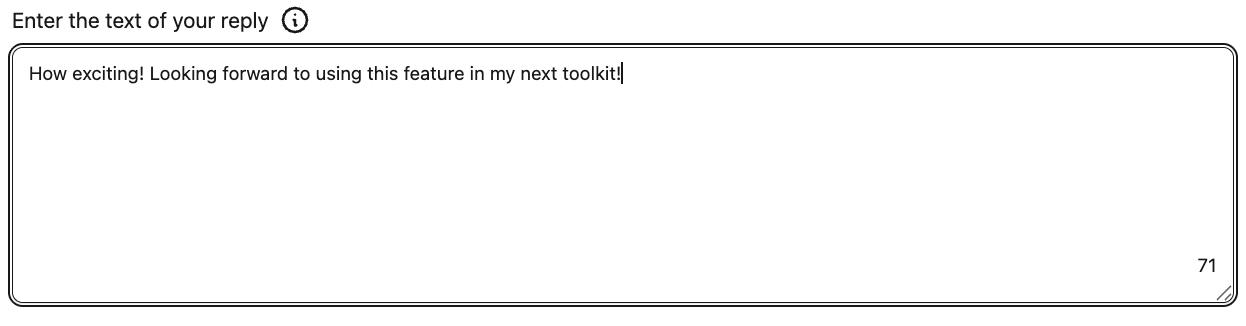
Follow the remaining steps as you would for a regular post. Depending on the platform, replies can also include images or user-generated content.
Save & Publish.
What Your Sharing Community Will See
When your community visits a live toolkit with this feature, they’ll see the original post you’ve linked and the suggested comment with a prompt to rewrite it in their own words.
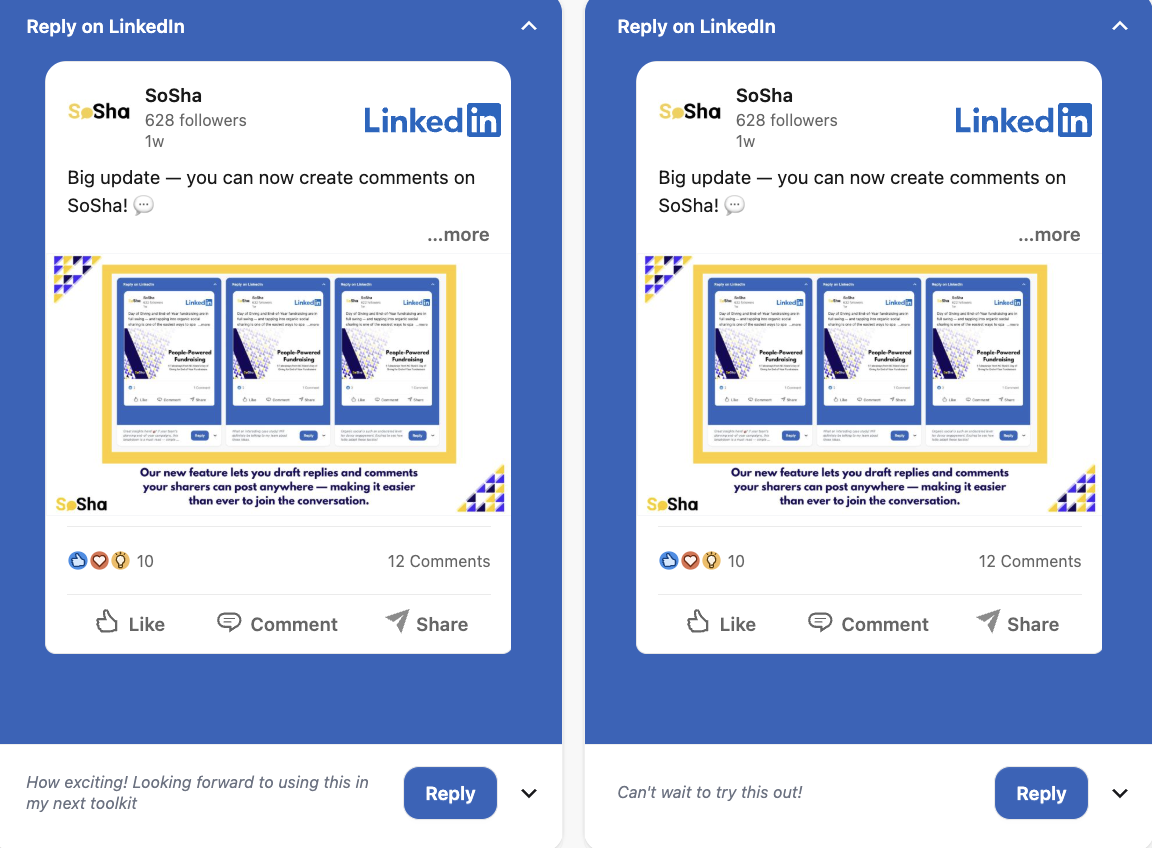
This ensures their replies feel authentic and natural, helping avoid bot-like behavior and increasing overall engagement.
Tip: Enable AI Post Rewriting to automatically create a new version of your post each time someone shares, so your community doesn’t have to write their own caption.