

Reach out to support@sosha.ai with any additional questions or submit a ticket below.
Submit ticketHow can I see the analytics for a specific toolkit?
Generating a detailed report allows you to view specific toolkit analytics.
How to generate toolkit-specific reports:
Log into your organization, and a list of all your toolkits will appear.
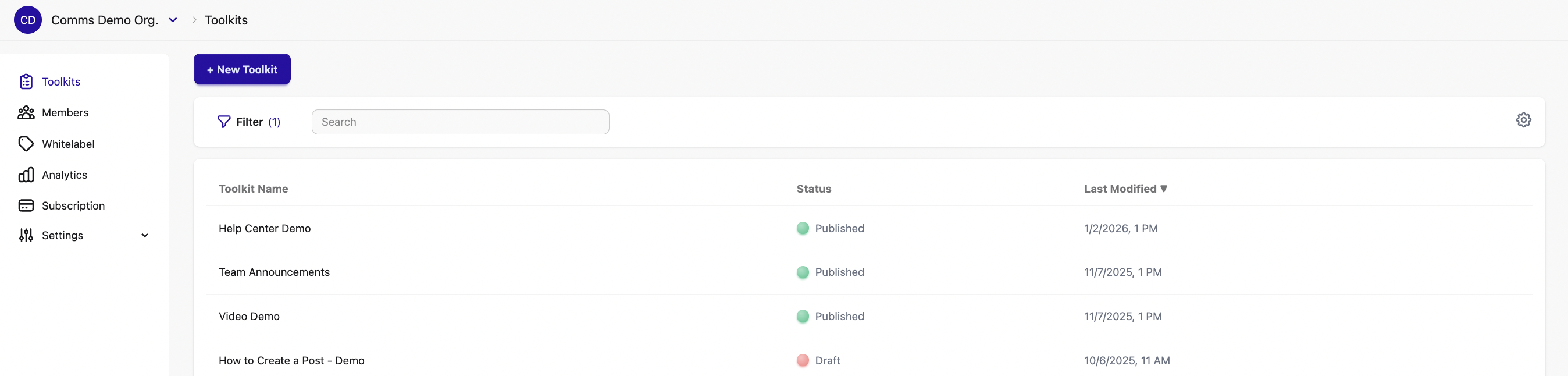
Click the Analytics tab in the left-hand menu. A summary of analytics for all toolkits will appear.

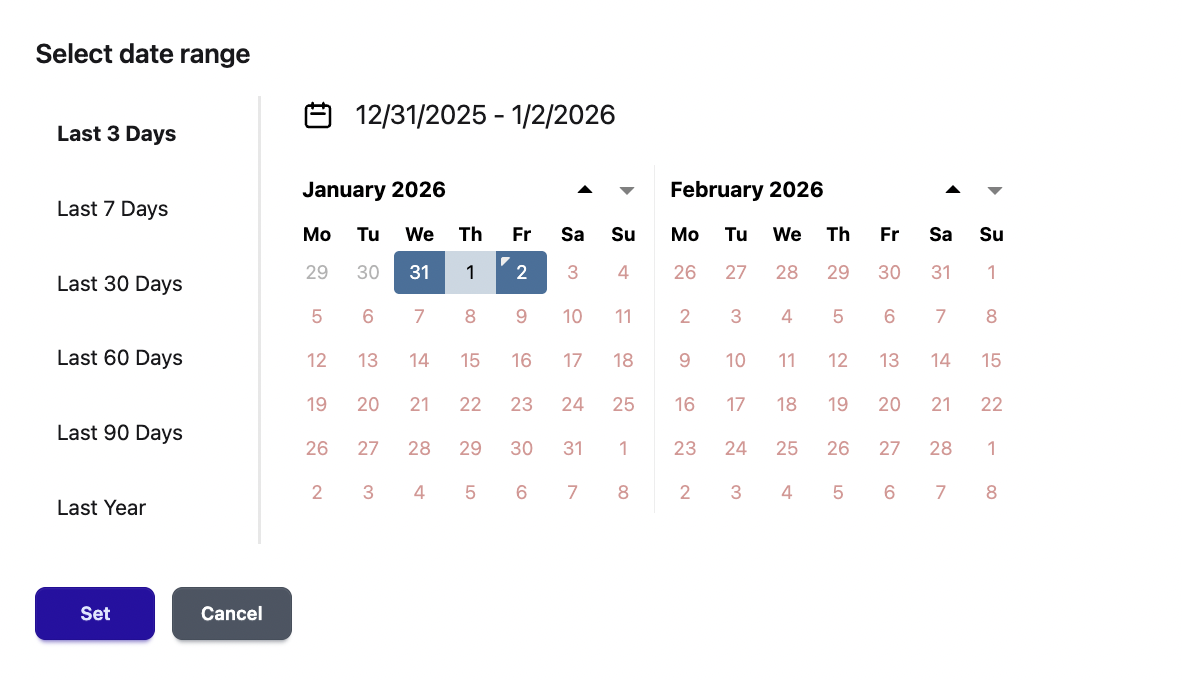
Click Date range to set a timeframe. Depending on your subscription tier, analytics vary in how far back they go.
Click All Toolkits in the toolkit selection dropdown. A window will appear showing all toolkits selected. From there, click the toolkit you want to generate a report for, then click Select 1 toolkit.
Note: You can also generate a report for a specific group of toolkits by selecting and deselecting toolkits in the list.

Click Export a Detailed Report, and the platform will generate a Google Sheets document with the data.