Reach out to support@sosha.ai with any additional questions or submit a ticket below.
Submit ticketAdd or Remove Social Networks
Save time by adding or removing social networks across multiple posts at once. This is especially useful when you've reached the social network limit on a live toolkit and need to quickly swap one network for another without editing each post individually.
How to Edit the Social Networks:
Select the posts you want to edit by clicking on them.

Click Actions on the right side of the toolkit page and select Bulk Edit.

Choose Social Networks.

To Add:
Select the social network you want to add.

Deselect any posts that you don't want the changes applied.
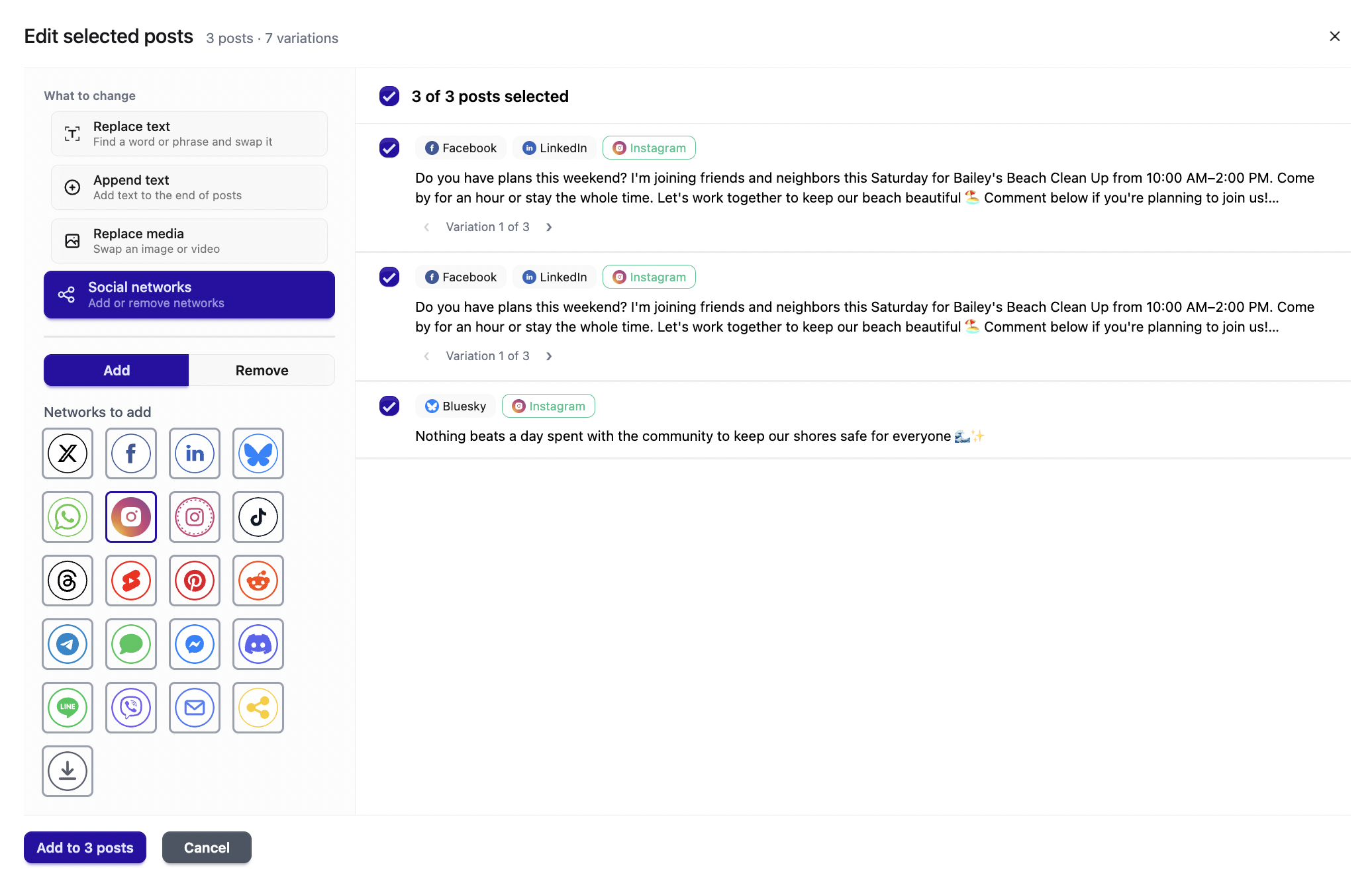
Preview the changes. Deselect any variations you don’t want to update, then click Add to Posts at the bottom to apply the changes.
To Remove:
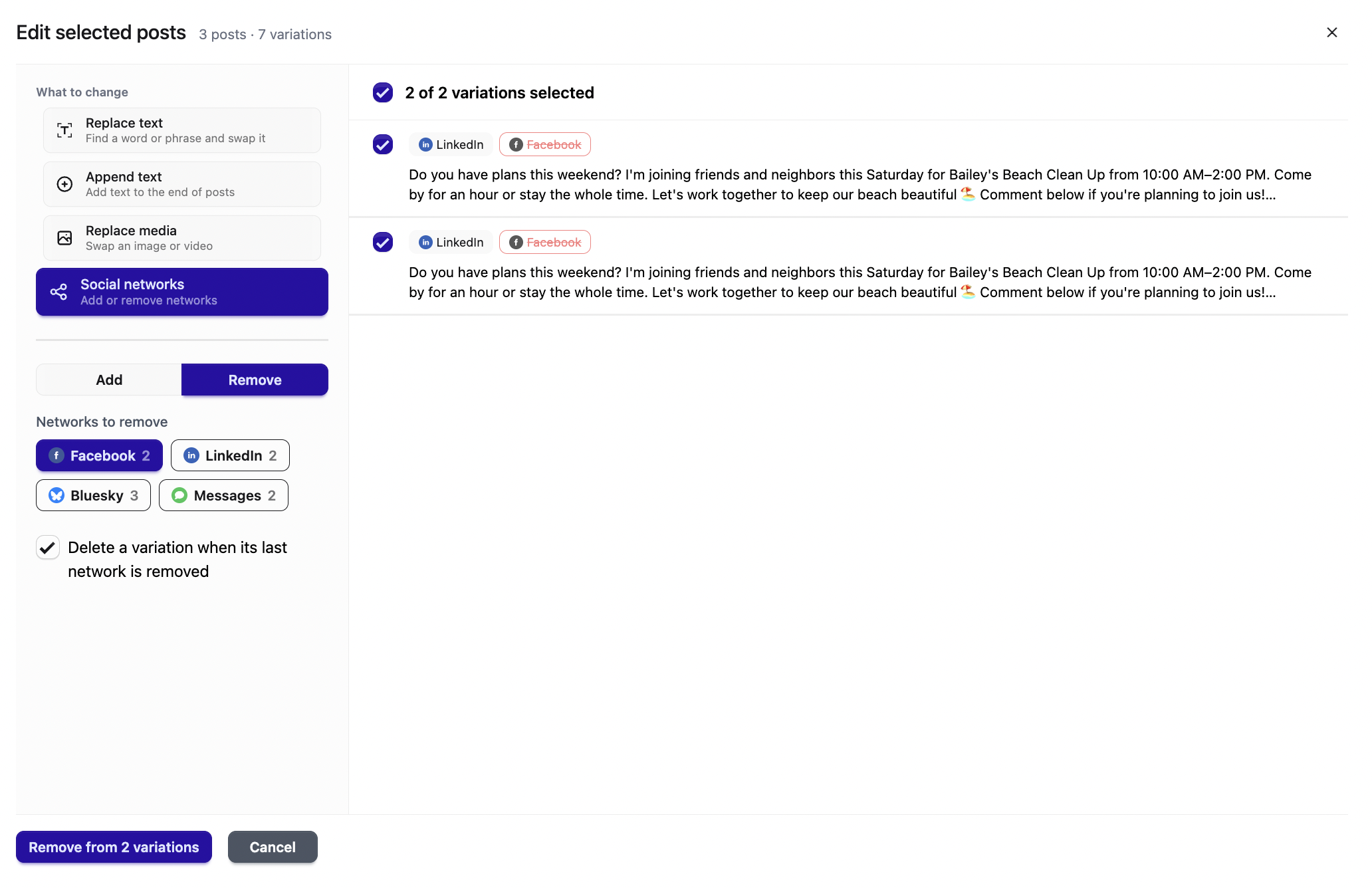
Select the network you'd like to remove. Click the box if you'd like to delete a variation when its last network is deleted.

Preview the changes. Deselect any variations you don’t want to update, then click Remove from Variations at the bottom to apply the changes.