

Reach out to support@sosha.ai with any additional questions or submit a ticket below.
Submit ticketHow to Create Multiple Posts at Once
With the Bulk Post Creator, toolkit builders can create multiple posts at the same time by creating a post template and filling in information from a spreadsheet.
This tool can be used to build multiple posts for different audience types: sponsors, speakers, partners, and more. Before you begin, prepare a spreadsheet with the information that will populate the posts.
Potential columns for your spreadsheet may include:
- A column with image links. Note that the images must be hosted online to apply the link.
- A column with attendees’/speakers’/etc’s names
- A column with different links
How to Create a Template:
When you create a template, you create one standardized post and leave blanks. The spreadsheet you upload must have columns to match that so that our system will match the blanks with your spreadsheet information.
Click the arrow next to "Create a New Post" and select Bulk Post Editor. A new window will open.
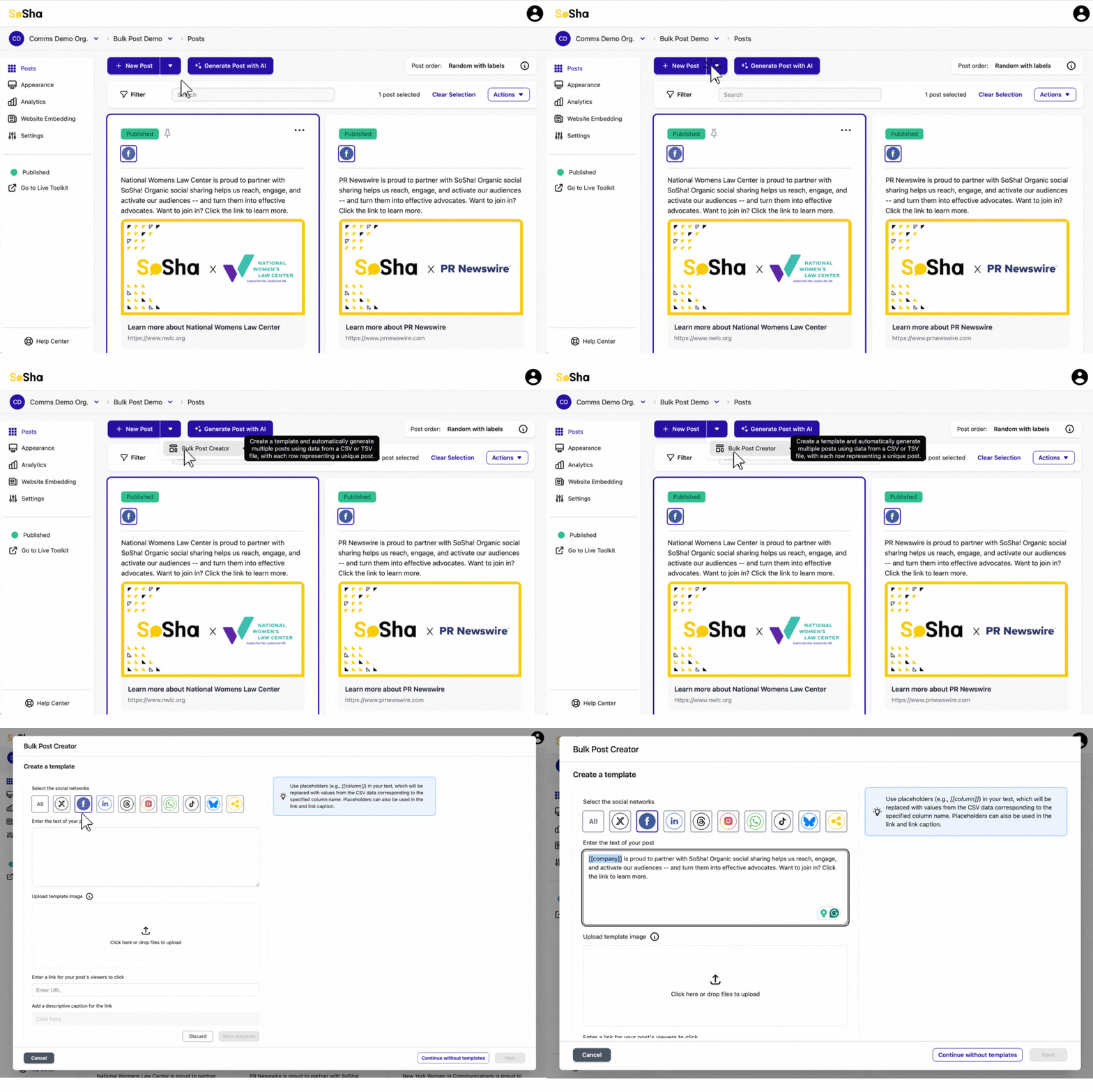
Select your social media networks.
Enter your text. Use placeholders in double brackets[[TEXT]] to indicate where spreadsheet data should be inserted (e.g., [[PARTNER_NAME]]). Make sure the column titles in your spreadsheet exactly match the placeholders you use.
Upload a Template Image. Use an image with a blank space where a variable (e.g., a logo) will be placed for each post.
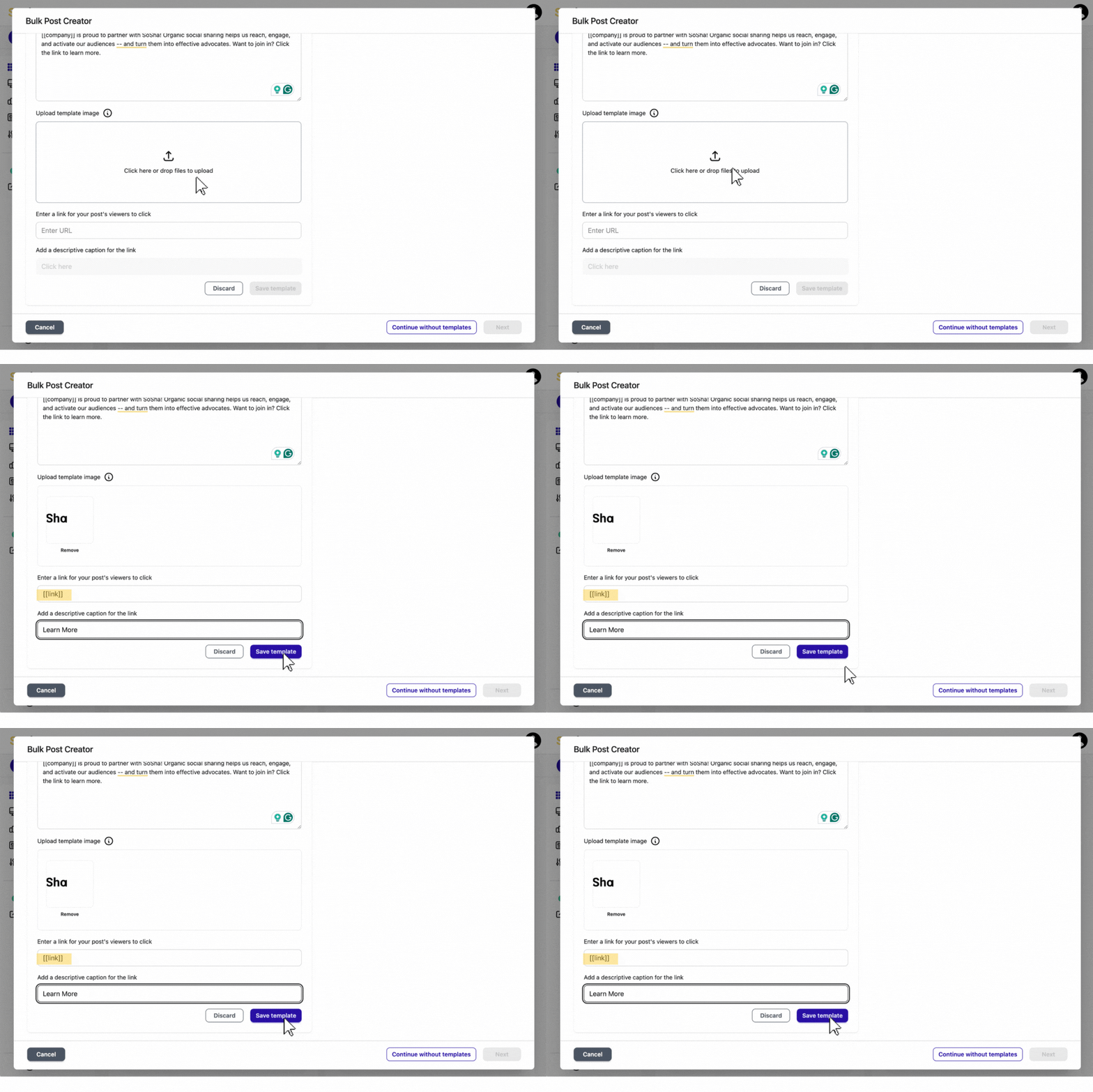
Add links and captions. Like the text, these can also use bracketed placeholders (e.g., [[LINK]]).
Click Next and select the box where images (e.g., logos) will be composited onto your template to set up the image placement.
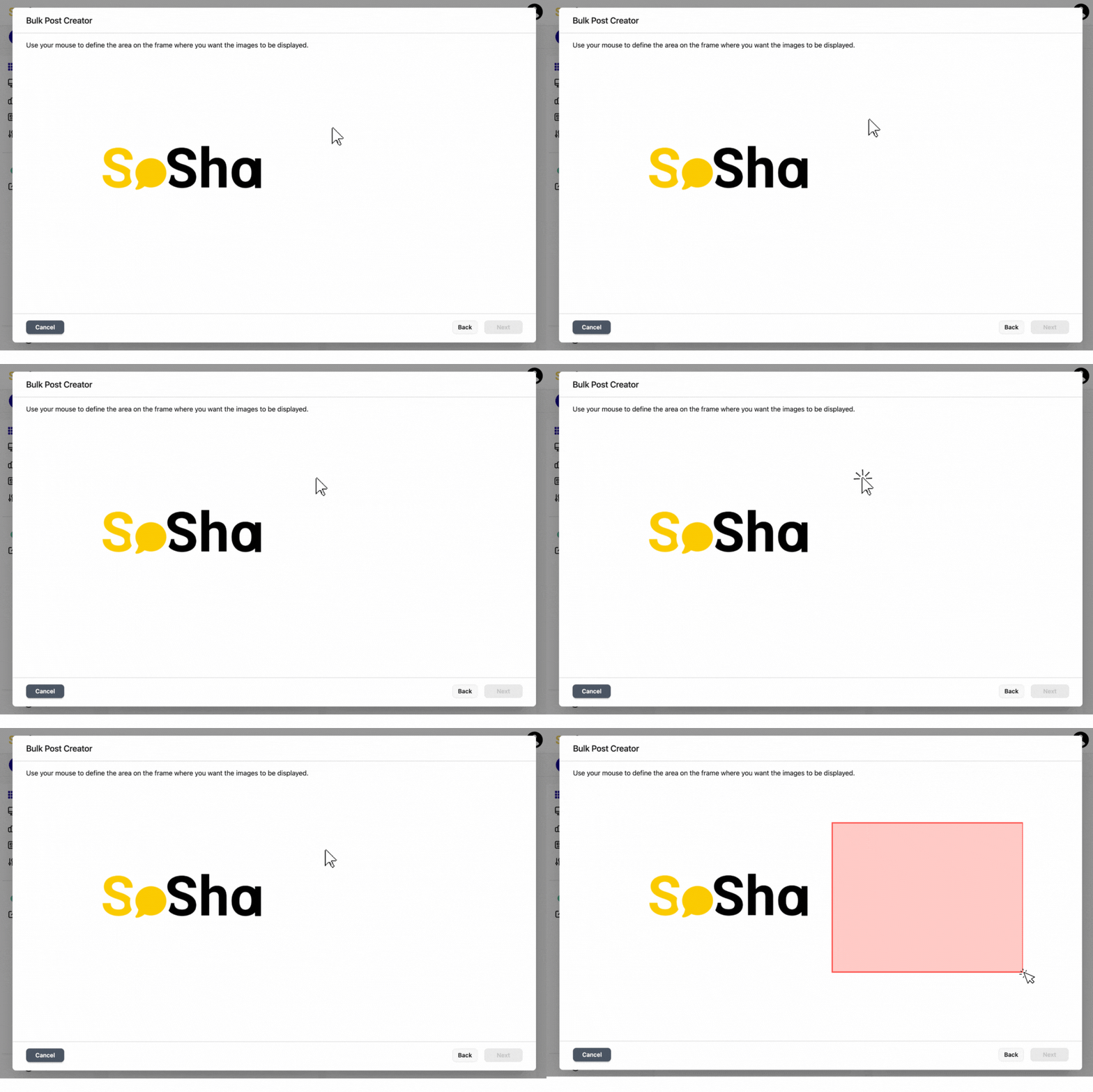
Click Add Text in the corner. A text box will appear on your image. Move the text box as needed.
Text overlays automatically populate each post with text from your spreadsheet. This is useful for event series, speaker graphics, session titles, or any large set of posts that each need unique text.
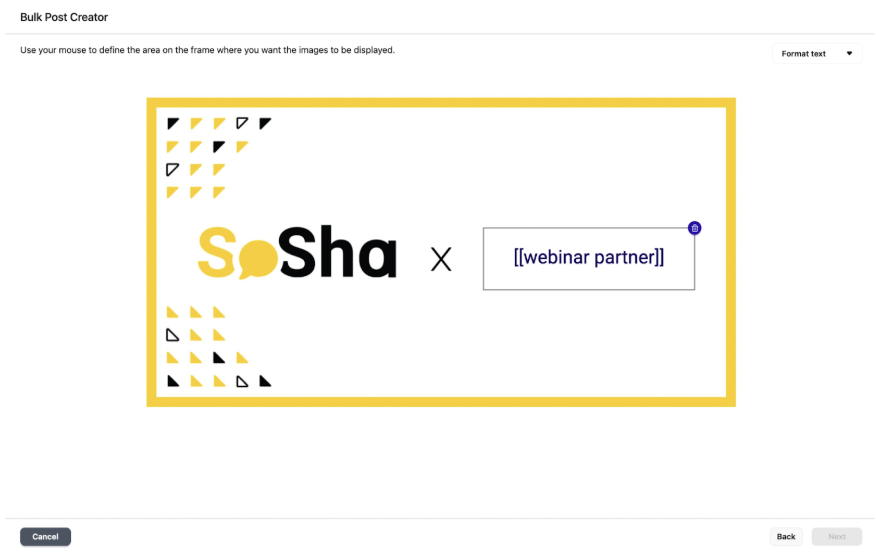
To format the text, either click Format text or double-click the text box to open the formatting options.
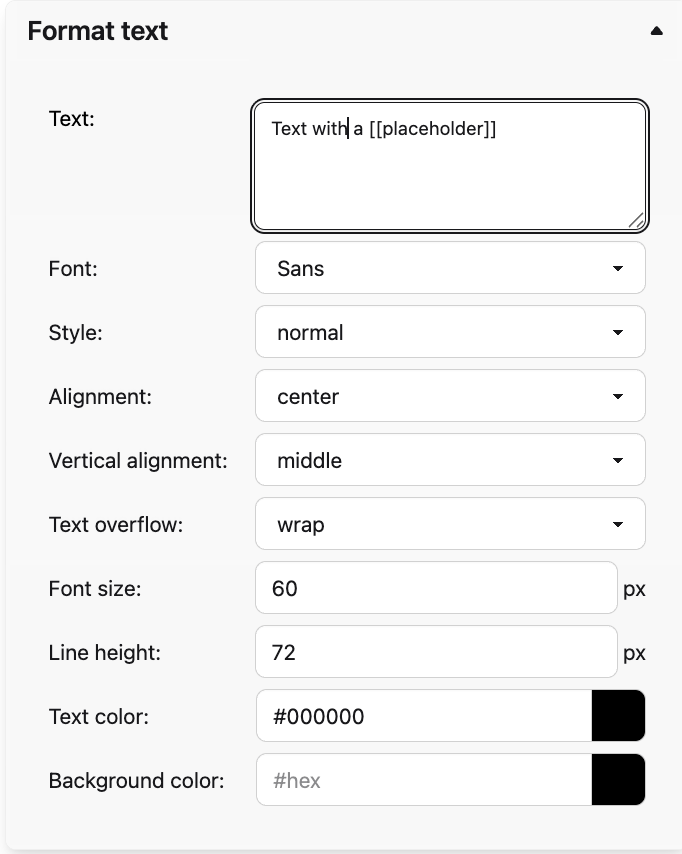
Enter a placeholder (e.g., [[LOCATION]], [[SPEAKER_NAME]], [[DATE]]) where you want spreadsheet data to appear. Make sure the placeholder exactly matches a column header in your spreadsheet.
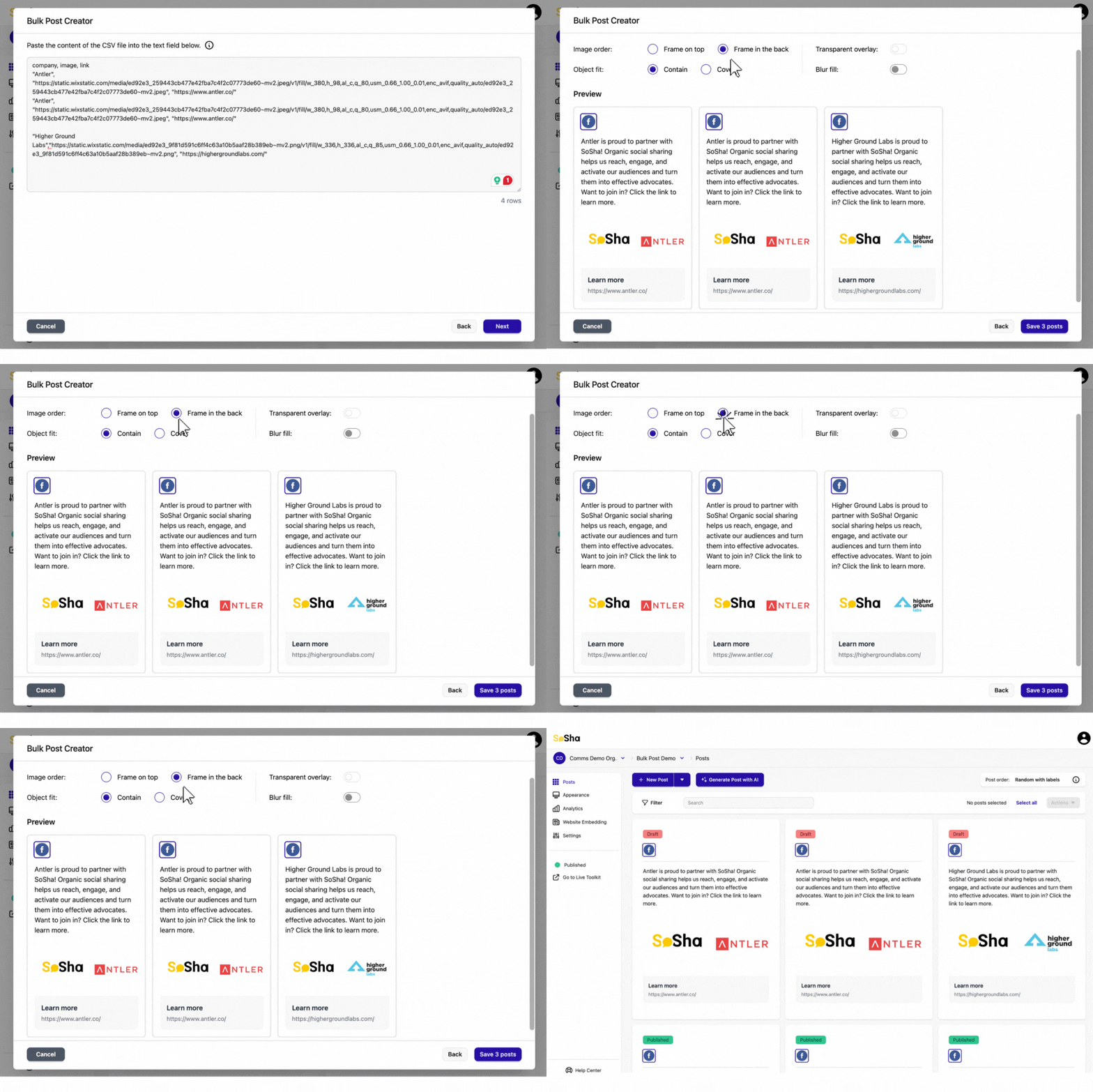
Paste your spreadsheet data by copying and pasting the CSV text from your spreadsheet.
Click Next to generate your posts.
- Note that the platform has a 300-post limit per bulk upload.
Rearrange image order and adjust object fit as needed. Save your changes.
How to Populate the Template with URL Parameters
Once you’ve published a post, you can fill in placeholders dynamically by adding parameters to your toolkit link. The system will replace placeholders with the values you provide in the URL.
Each parameter must match a placeholder name and be URL-encoded.
Example:
To personalize the text in a post for “John Doe”:
- Convert the value to a URL-friendly format:
John Doe→John%20Doe - Create the parameter using the placeholder name:
?name=John%20Doe - Append it to your toolkit link:
https://app.sosha.ai/toolkit/7a04f747-f907-4b4e-b4c9-79ad51125741?name=John%20Doe
When the link is opened, the {name} placeholder will be replaced with “John Doe.”
Keep in mind:
- Parameter names must exactly match your placeholder names.
- Each link generates one personalized version. To create multiple versions, generate a unique link per value.
- Multiple parameters can be added by separating them with
&(e.g.,?name=John%20Doe&company=Acme).