

Reach out to support@sosha.ai with any additional questions or submit a ticket below.
Submit ticketHow to Set a Default Banner
A banner is the header text and/or image that serves as the first visual element sharers see when they visit your live toolkit.
Create a default banner to be applied when a new toolkit is created.
Follow these steps to customize your banner:
Select the Appearance tab on your organization.

Decide if you want the banner displayed by toggling the ‘Display Banner’ option to turn the banner on or off.
Select a background color and text color using hex codes (e.g. #FF5733) or click the color box to use the color picker and drag to choose a shade.
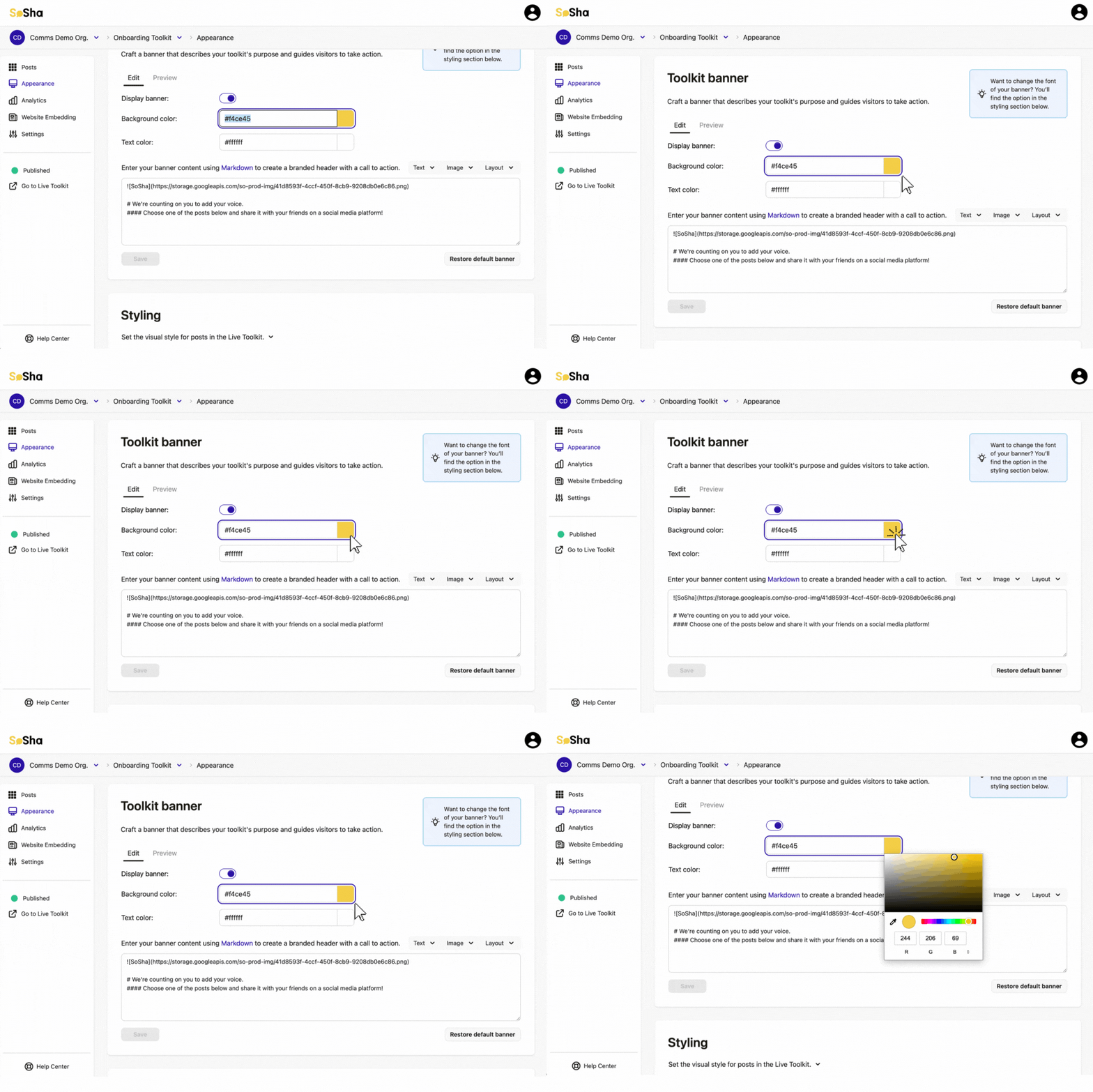
Use the toolbar on the right to add text, images, and layout elements. The toolbar automatically inserts the correct Markdown syntax for you—no need to write it manually. Below you’ll see a preview of the banner below.
Include [[ORGANIZATION_NAME]] and [[TOOLKIT_NAME]] as placeholders, they will be substituted with the organization and toolkit names at toolkit-creation time.
- Text: Select the size header or to include a link.
- Image: Either upload a publicly available image URL or select “Image Upload” to upload an image or a GIF to include in your banner. The Markdown will be added automatically.
- Supported file types: JPEG and PNG (max 20MB), and GIFs (max 50MB).
- Layout: Include a table, ordered list, unordered list, or horizontal line.
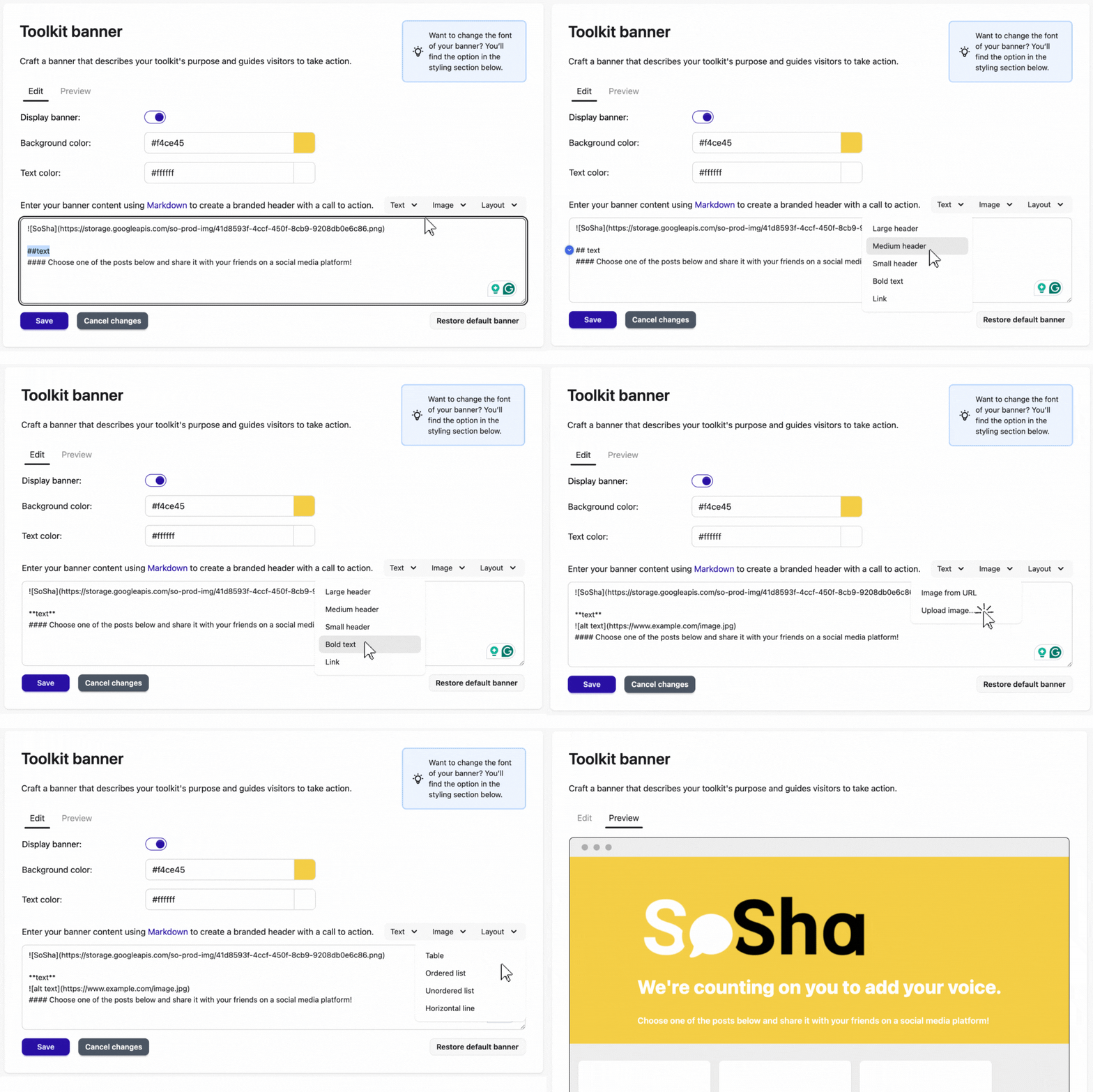
Click ‘Save’ to save changes.