
Support Center

Need more help?
Reach out to support@sosha.ai with any additional questions or submit a ticket below.
Submit ticketBrowser Tab Customization for Individual Toolkits
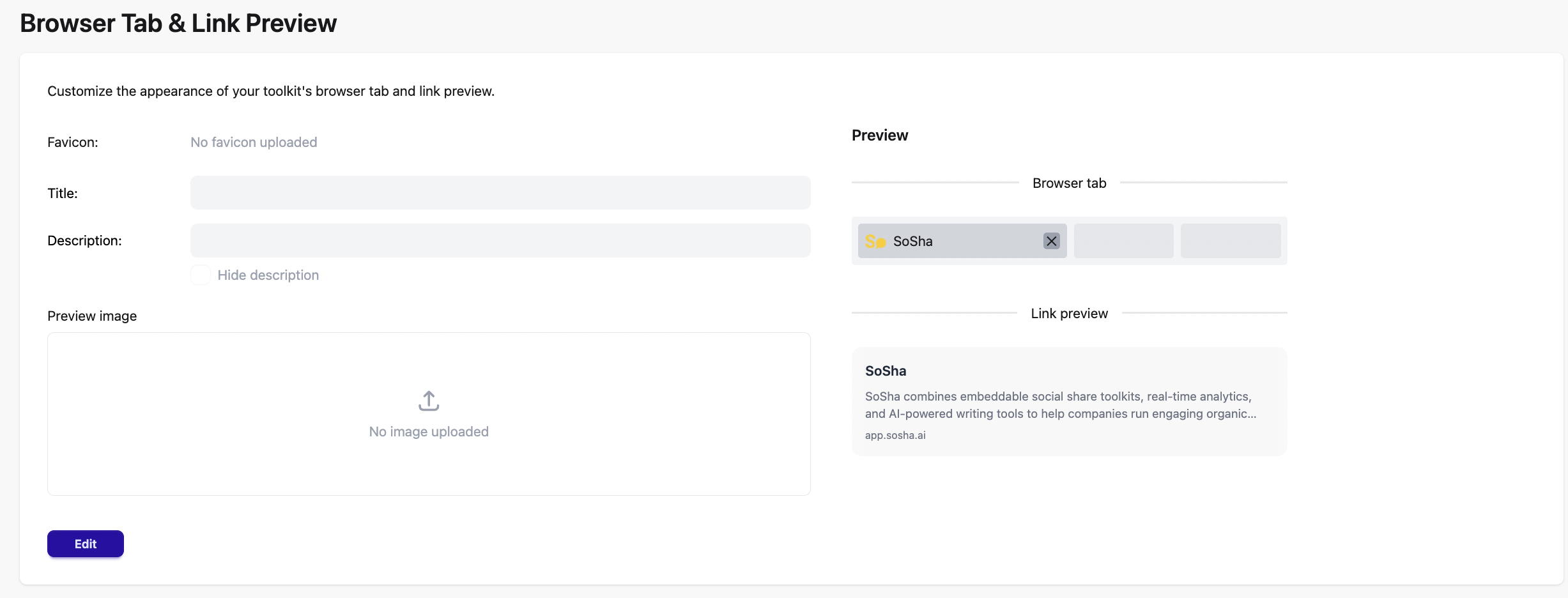
Customize how your toolkit appears in the browser tab and link previews. As you edit, a live preview will show exactly how your changes will look. This feature can be found in the Appearance section of your toolkit.
To edit the browser tab for all your toolkits, read our article here for Whitelabeling.
To customize:
Go to the Appearance tab of your toolkit and open the dropdown menu. Select Browser & Link Preview.

Click Edit (blue button).
Click Upload (grey button) to add a favicon image from your desktop.
Enter a new title to update your browser tab text.
Edit the description that appears under all posts with a link preview.
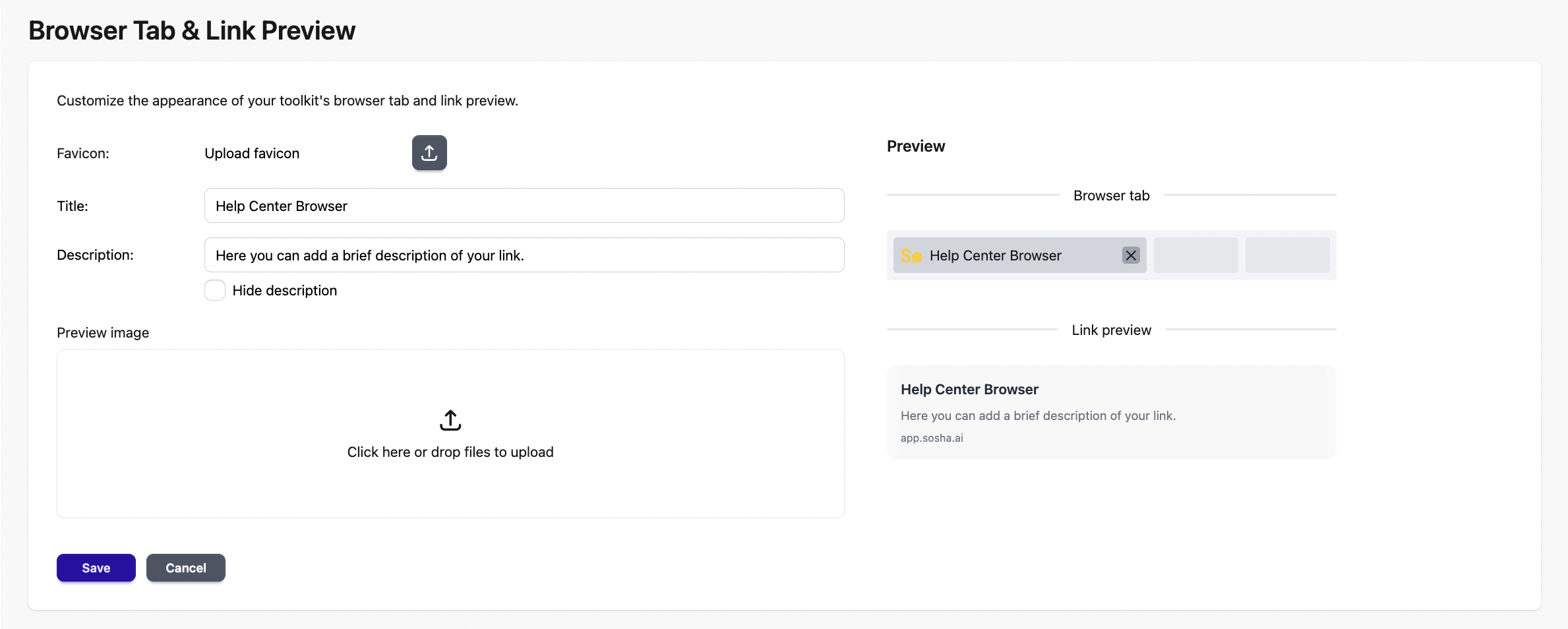
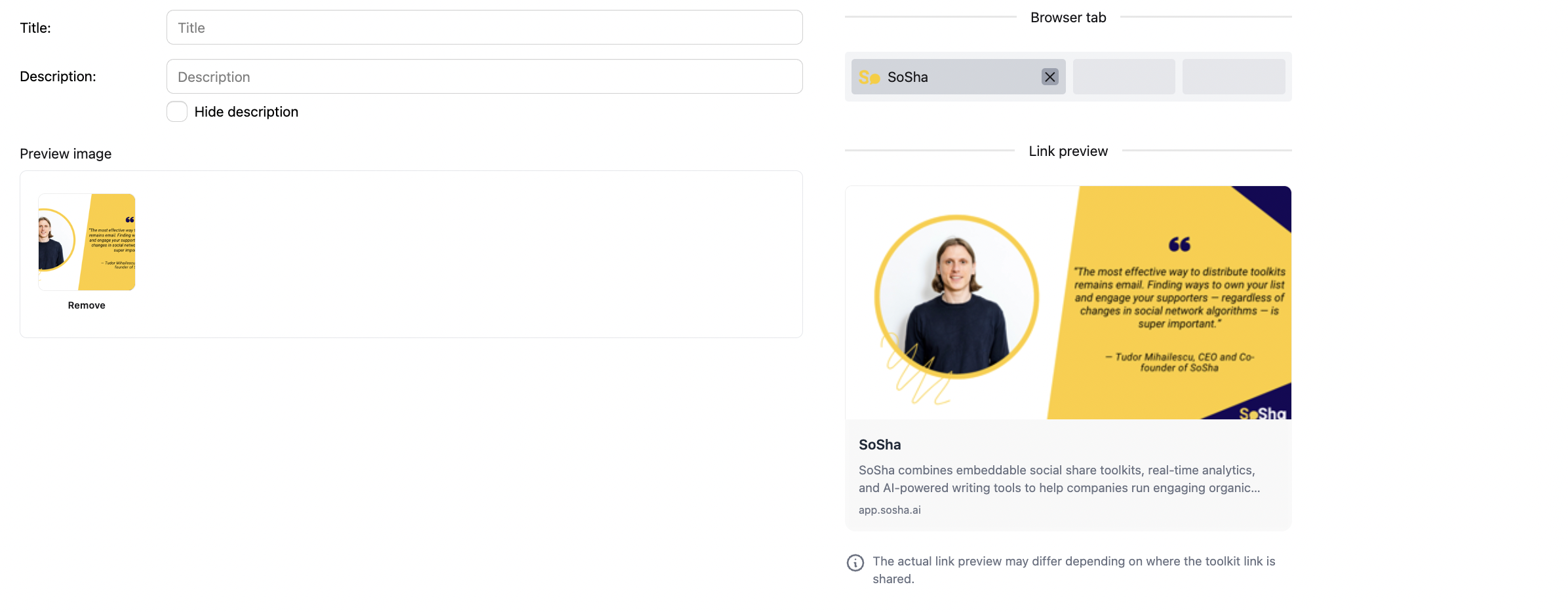
Upload a preview image to replace the default image used for link posts.
Click Save to apply your changes.