

Reach out to support@sosha.ai with any additional questions or submit a ticket below.
Submit ticketEmbedding Posts into Emails
Adding ready-made posts into emails is an effective way to encourage shares.
Many partners see success by including shareable posts in emails sent after user actions like donations, event sign-ups, or other engagements with your organization.
Note: Ensure the post is published before embedding it. You can only embed a maximum of two posts in an email at one time.
How to embed a post in an email from the Posts section:
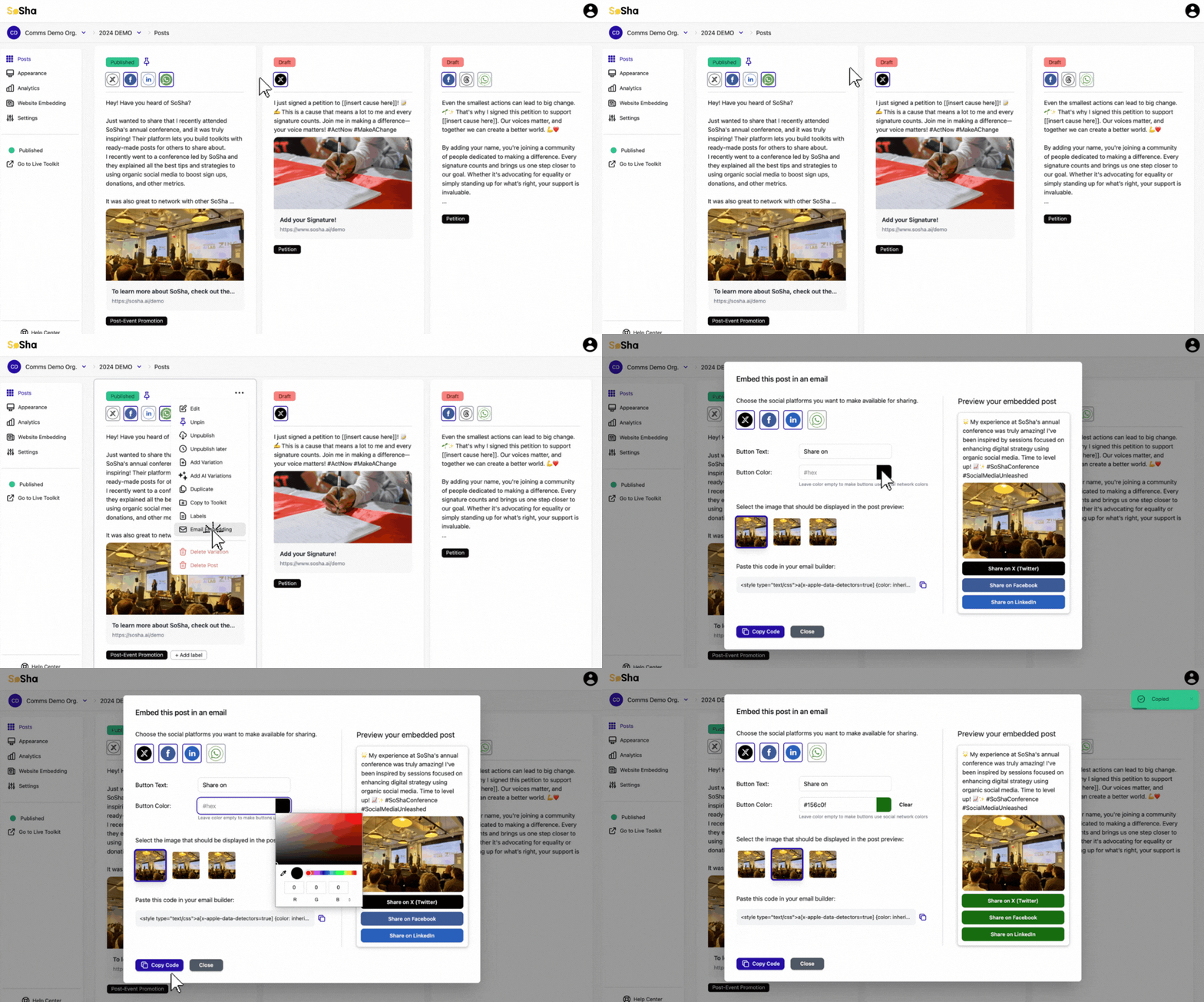
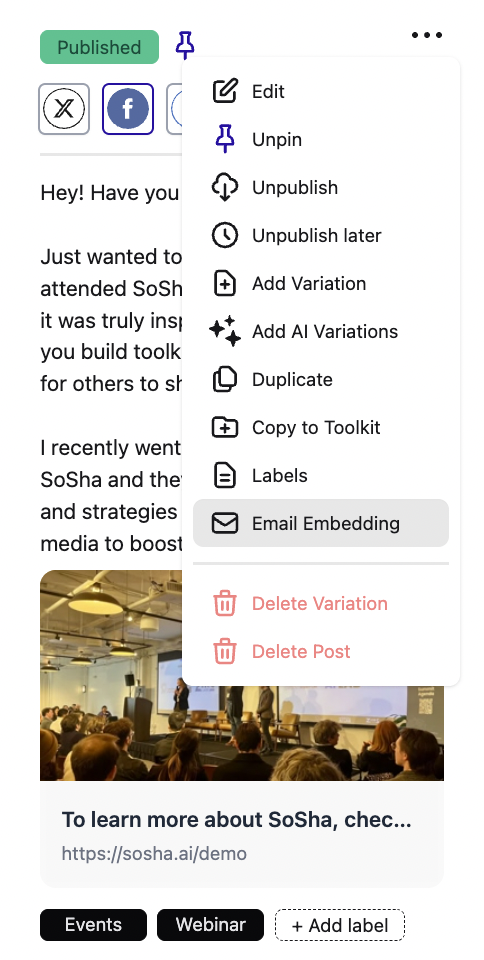
Hover over the post that you’d like to include in your email.
Note: When multiple images are attached to an email embedded post, sharers can choose which image they want to share.
Click the three dots in the corner and select ‘Email Embedding.’ The first variation you click will be the one that displays first and you can choose whether to include UGC or no media.
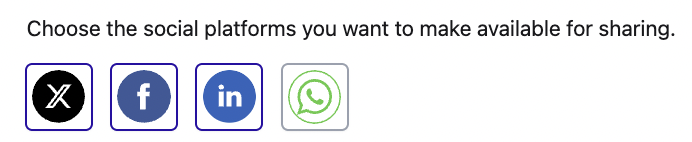
Choose the social media that can be shared for the post.
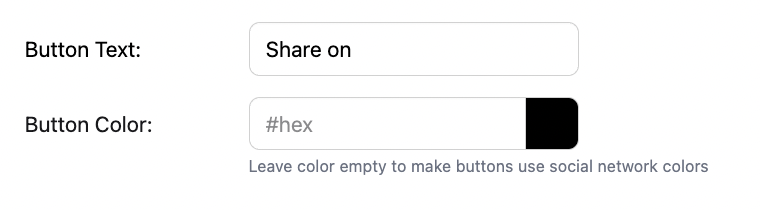
Customize the button text and color (default is ‘Share Via’).
(Optional) Add a URL to redirect people after they've shared.
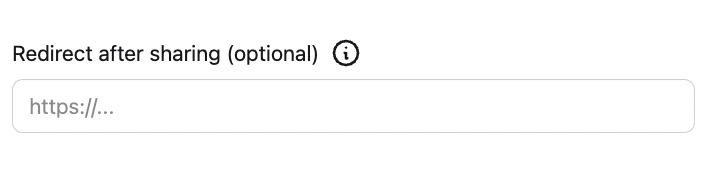
(Optional) Add URL parameters to the embed link, allowing you to customize what data loads and permit tracking.

Copy the generated code and paste it into your email builder or paste directly onto Gmail or Outlook.

How to embed two posts (max) in an email:
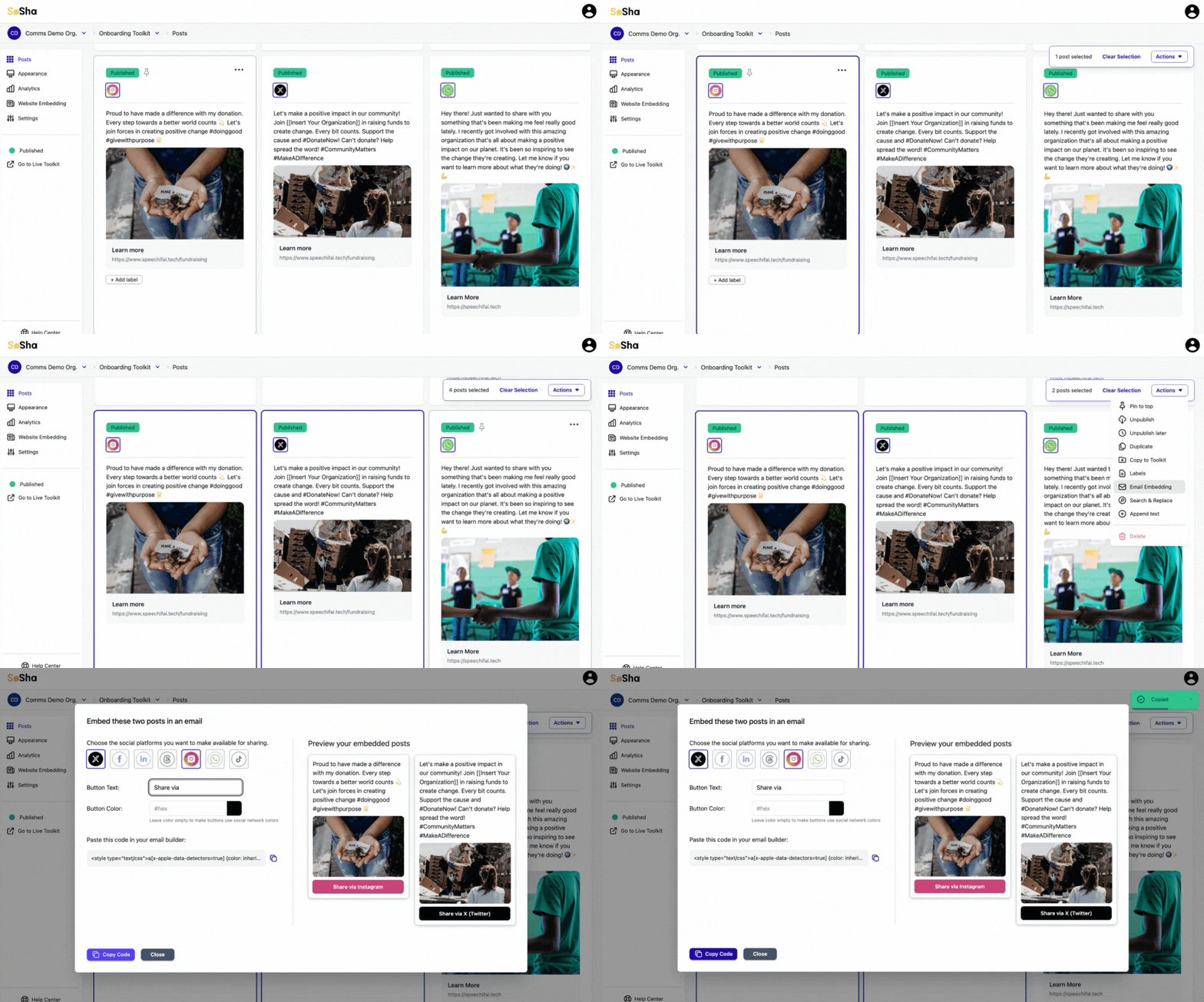
Click the two posts you want to embed.
Click the ‘Actions’ button on the right corner and choose ‘Email Embedding.’
Choose the social media for the posts. Follow the same steps as above to customize the button text and color, redirect URL, and URL parameters. Copy the generated code and paste it into your email builder or email client.
How to Get Code from the Embedding Section:
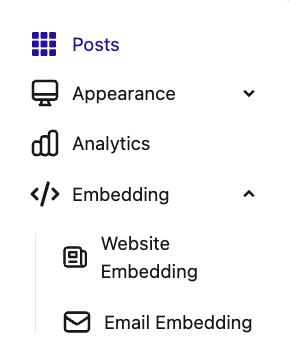
Select a toolkit. On the left panel, open the Embedding dropdown menu and select Email Embedding.
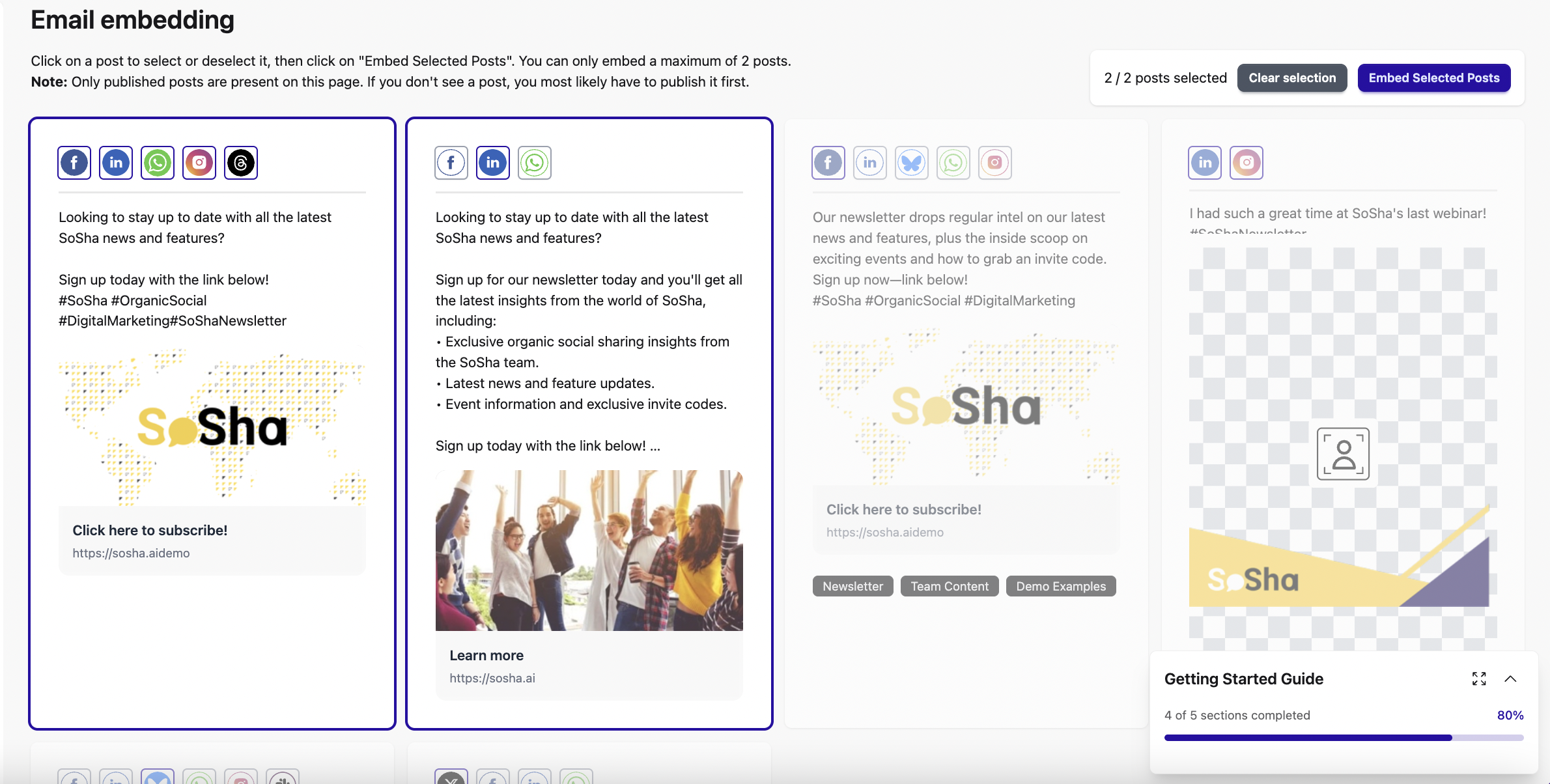
Choose posts to embed. Click on a post to select or deselect it, then click Embed Selected Posts. Make sure the posts you want to embed are published, as only published posts will appear. Note: You can embed up to 2 posts at a time.
Customize sharing options. Choose the platforms you’d like your posts to be shareable to. You can also customize the button color or text and add a redirect URL or URL parameters. A live preview on the right will show how your embedded posts will appear in the email.

Once you're happy with the setup, click Copy Code and paste it into your email builder or client like Gmail or Outlook.