

Reach out to support@sosha.ai with any additional questions or submit a ticket below.
Submit ticketHow to embed a post onto a website
You can add SoSha posts to any page on your website to increase visibility and engagement. We generate an iframe embed code that you can copy and paste into your website to display the post directly on the page.
To embed a post on your website:
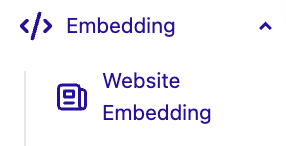
Open your toolkit and click the Embedding tab. Select Website Embedding.
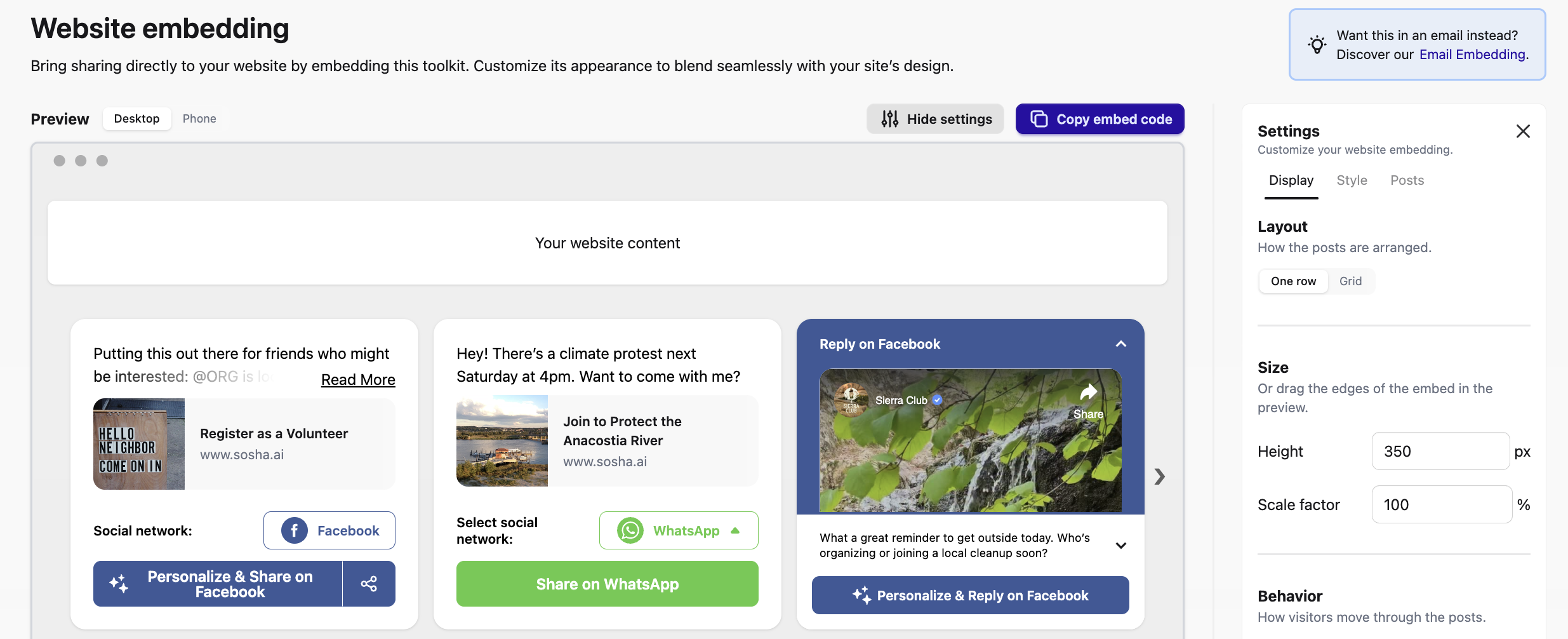
You’ll see a preview of your embedded posts on the left and customization settings on the right.
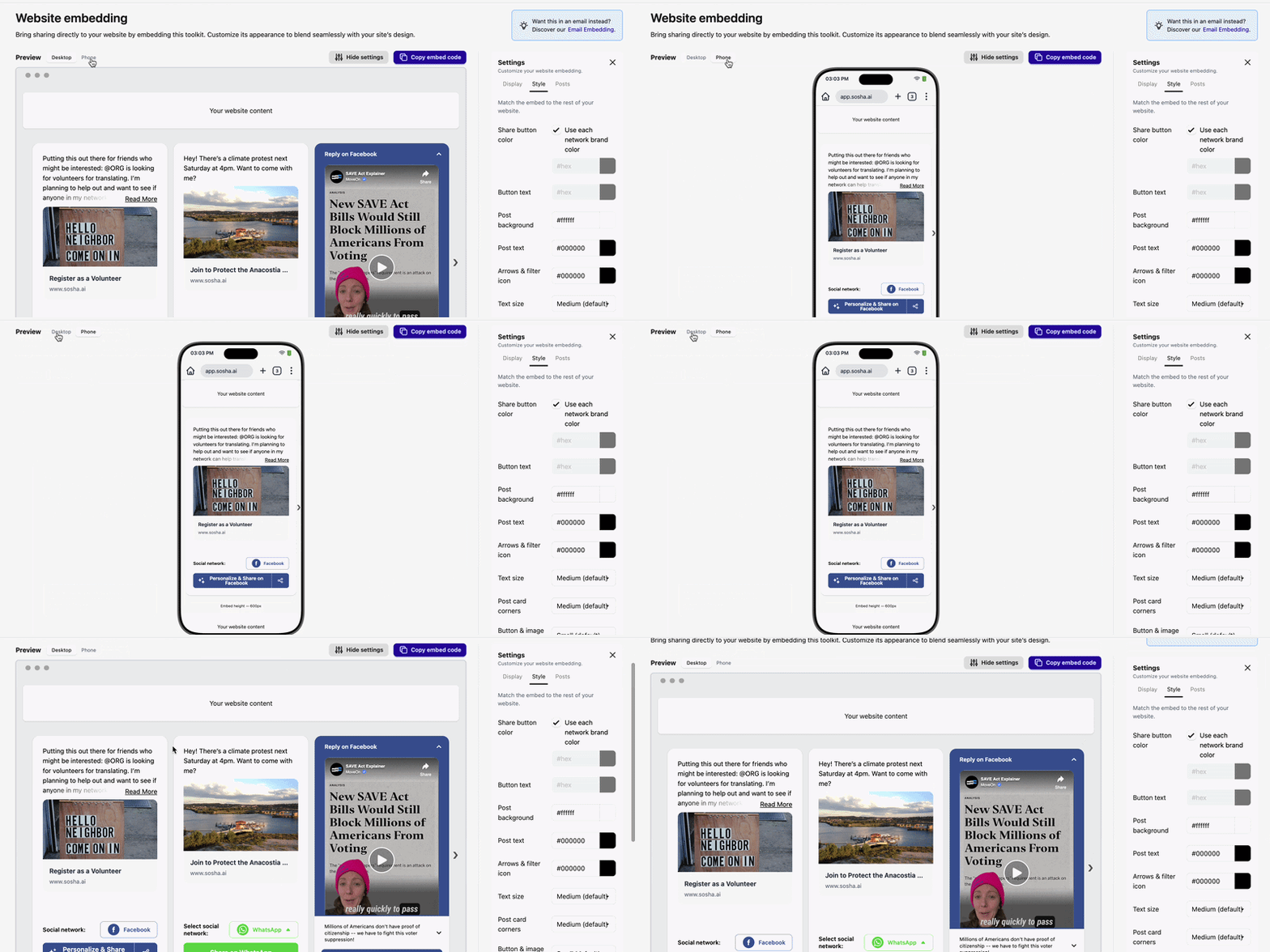
Use the desktop and mobile previews to see how your posts will appear on your website as you make changes.
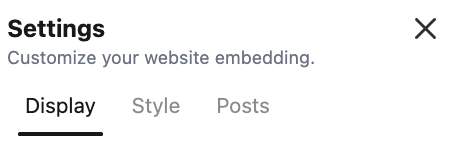
The settings are organized into three sections: Display, Style, and Posts.
Display: Control how the embedded posts appear and how visitors can browse them.
- Layout: Choose whether posts appear in a grid or a single row.
- Size: Adjust the height and scale of the embed. You can also drag the bottom edge of the previewed posts to change its height.
- Behavior: Choose how visitors can browse through the posts.
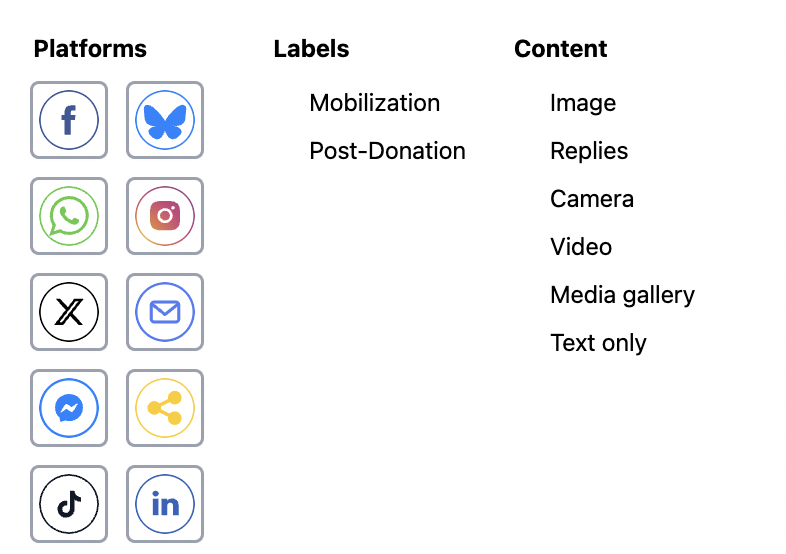
- Enable Filters: Allow visitors to filter posts using the labels you’ve created in your toolkit.
- Language: Set the language used for the sharing instructions. This does not translate the content of your posts.
- Default Network: Choose which social network is displayed first.
Style: Match the embedded posts to the look of your website.
You can customize:
- Share button color
- Post background
- Post text
- Arrows and filter icon
- Text size
- Post card corners
- Button and image corners
- Font
For settings with custom colors, enter the hex color code or drag your cursor to select a color.
Posts: Limit which toolkit posts appear on your website instead of displaying every post.
To filter the posts:
- Click Pick filters under the Posts section.
- Open the filter menu in the top-left corner of the preview.
- Choose the content you want to display.
Add the embed to your website
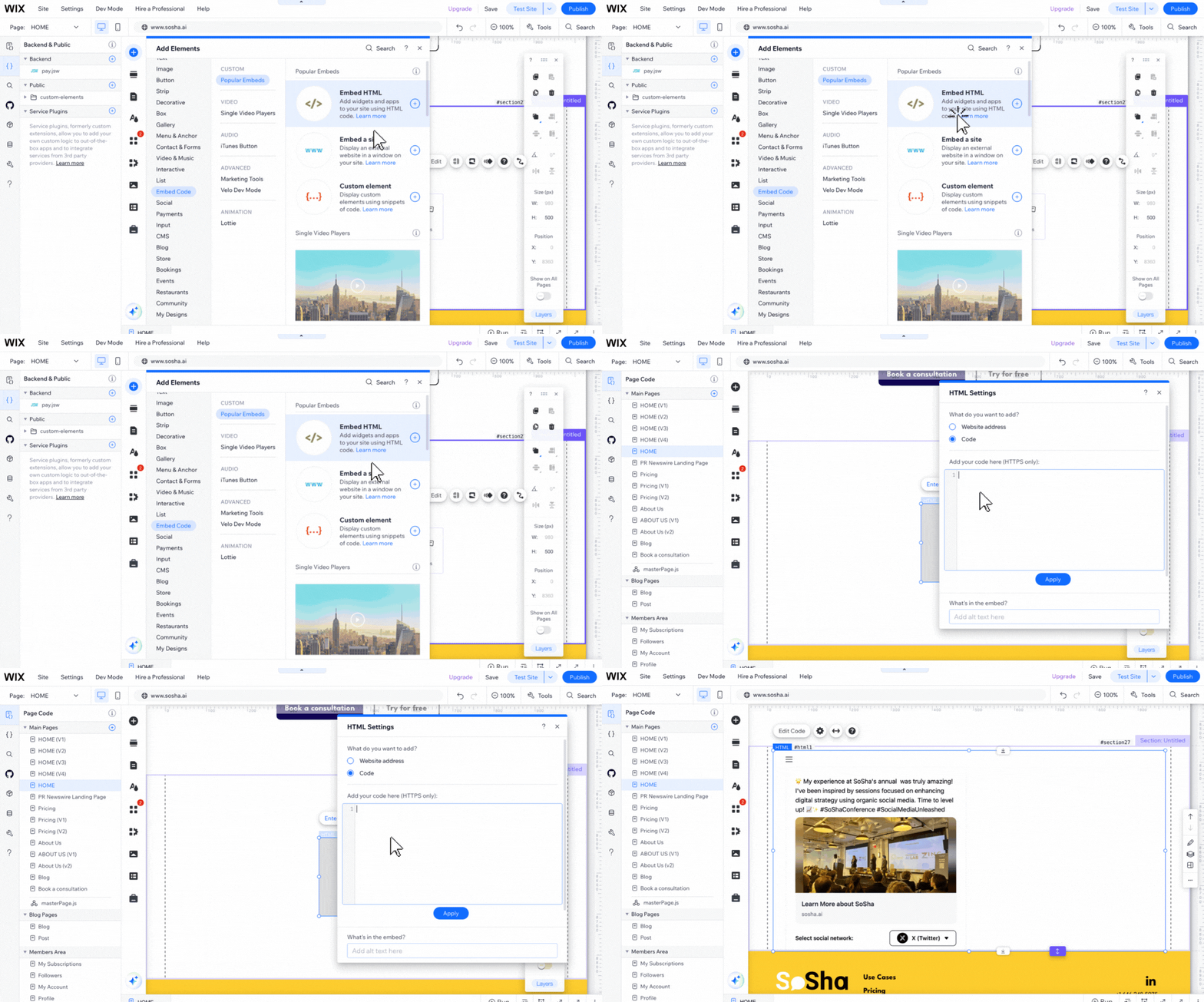
Once you’re happy with the appearance and posts you’ve selected, copy the generated iframe embed code.

Paste the generated iframe code into your website builder of choice. We recommend consulting your website builder’s support center for information on how to embed code onto your website.
Your embedded posts will then display directly on your website, giving visitors an easy way to browse and share your content.
Note: NationBuilder may strip the HTML code for the iframe from page content. To avoid this, add the code to the layout file, where it will render correctly.