

Reach out to support@sosha.ai with any additional questions or submit a ticket below.
Submit ticketHow to Add Text Overlays to Images
The Text Overlay feature lets you create reusable image templates with placeholders that automatically populate with dynamic data from URL parameters.
Placeholders can be added to both post text and images, making it easy to create personalized posts at scale.
How to Create a Template Post:
Create a new post, select Original Post, then choose the social networks where you want the post to be shareable.
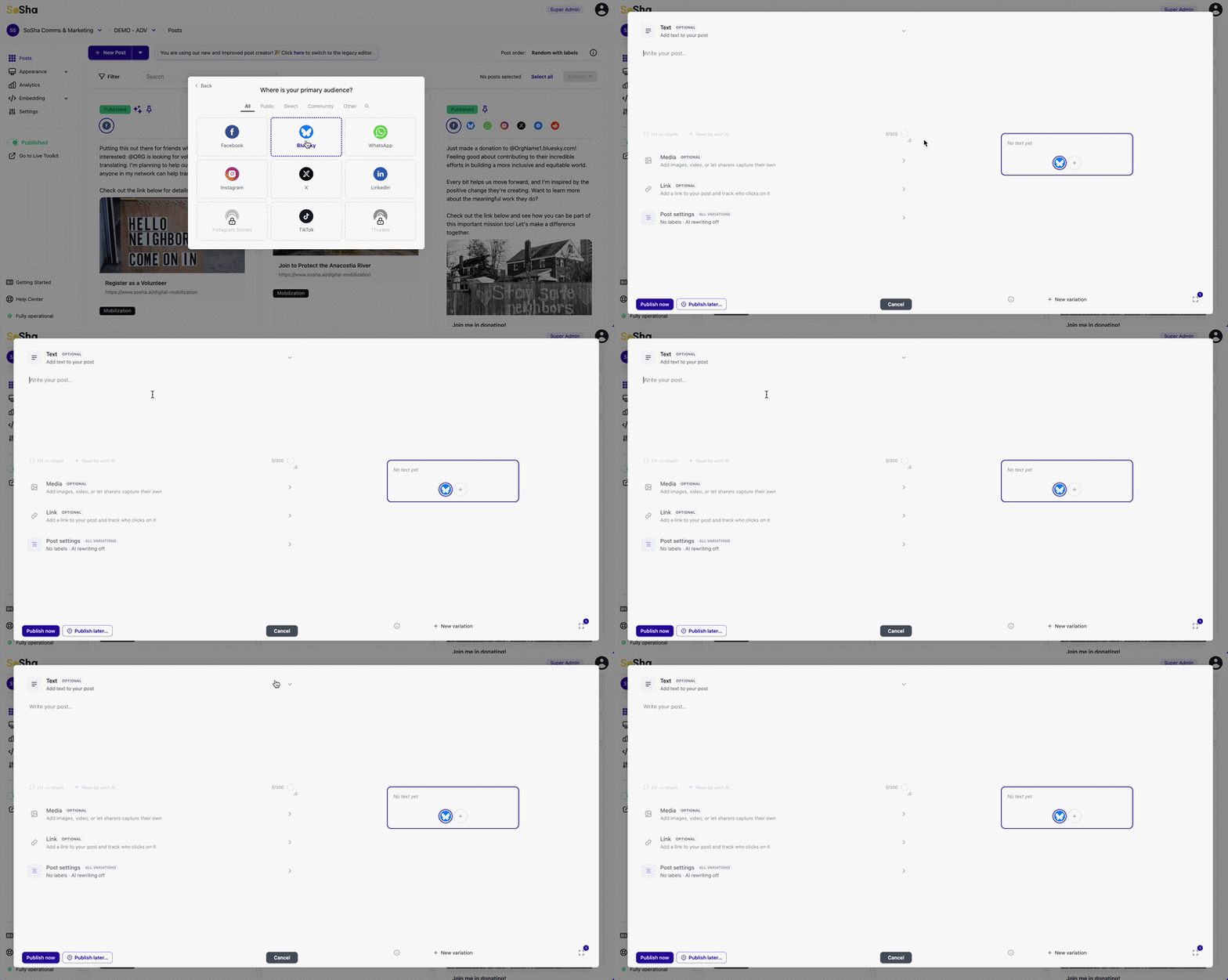
Add your text. To add dynamic placeholders in the post text, wrap them in double square brackets (e.g. [[name]]).
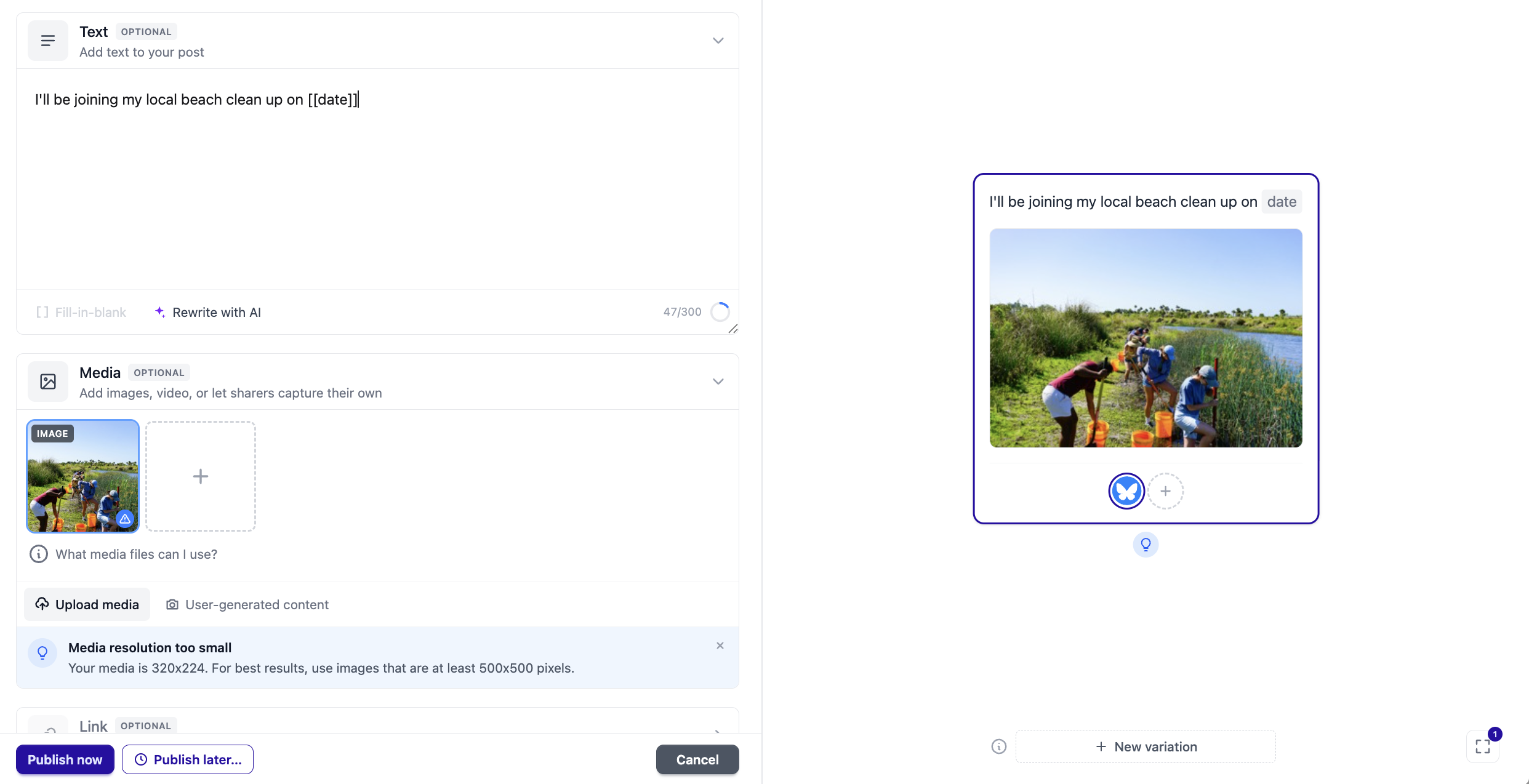
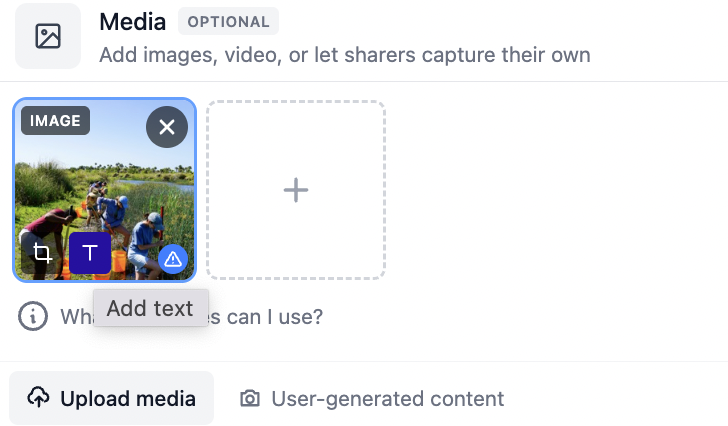
Upload your image. Once uploaded, hover over the image and click the “Add Text” icon above the uploaded image.
Design Your Text Overlay.
- Use your mouse to draw a text box on the image
- Click the "Edit" button to style the text (font, size, color, etc.)
- Insert placeholders using double square brackets (e.g. [[name]])
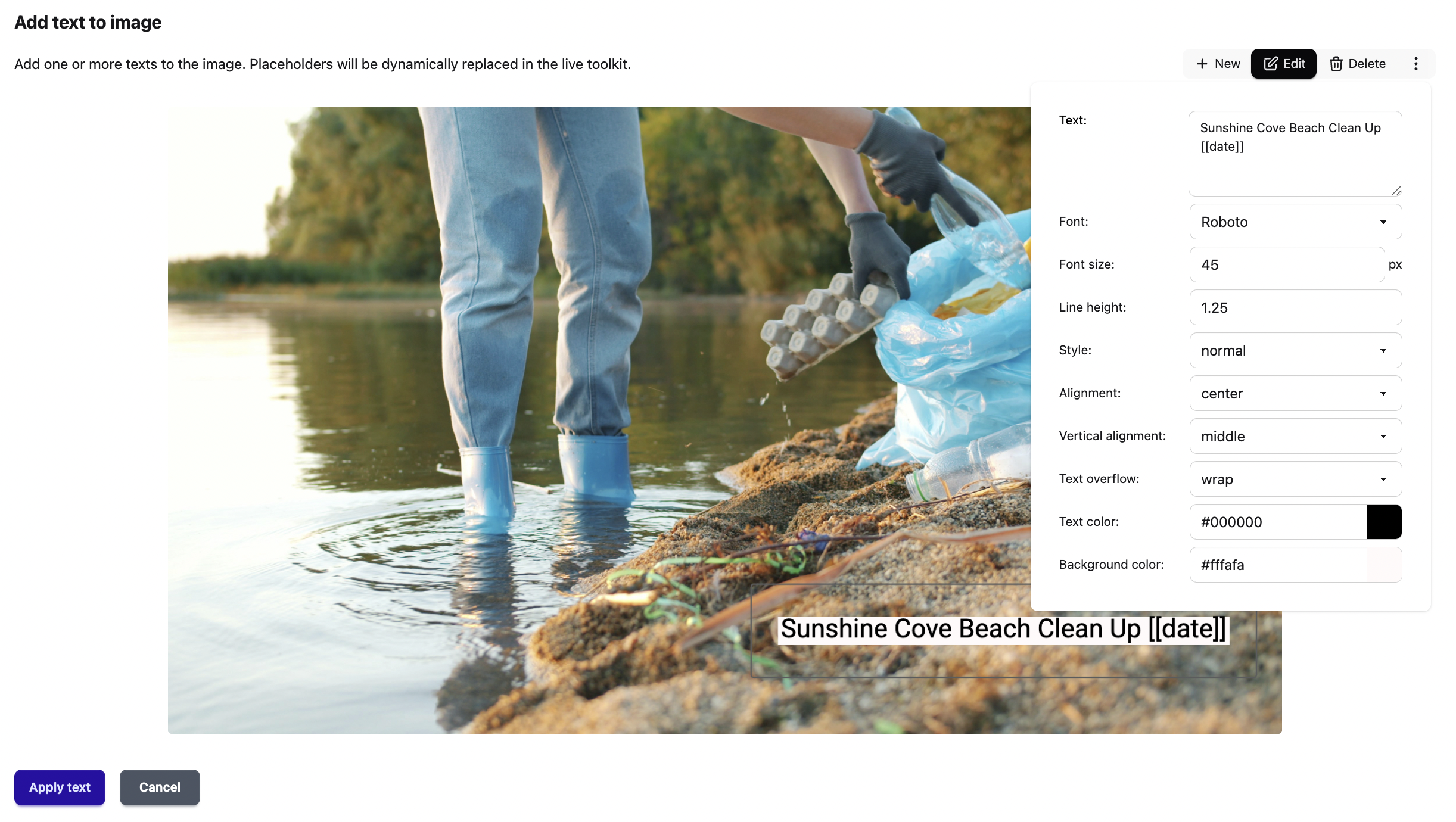
When finished, click “Apply text”.
Save your post and publish it to your toolkit.
To dynamically fill in placeholders, append URL parameters to your toolkit link.
Note: Parameter values must be URL-encoded.
For example, to personalize the post for John Doe:
- URL-encode the value: John Doe → John%20Doe
- Create the parameter using the placeholder name: ?name=John%20Doe
- Append it to your toolkit link:
https://app.sosha.ai/toolkit/7a04f747-f907-4b4e-b4c9-79ad51125741?name=John%20Doe
When the link is opened, the post will automatically display John Doe wherever [[name]] is used, both in the post text and on the image.