Support Center

Need more help?
Reach out to support@sosha.ai with any additional questions or submit a ticket below.
Submit ticketHow to Change your SoSha Account Password
If you forgot your password and can't sign in, resetting it only takes a minute. Your password can also be changed once logged in under your profile's settings.
Follow these steps to reset:
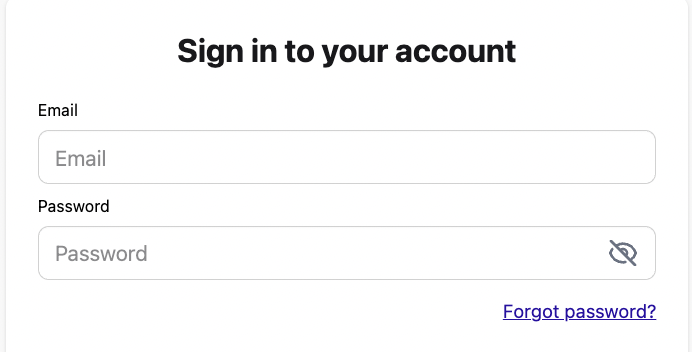
At the log in portal, app.sosha.ai/auth/sign-in, select the ‘Forgot Password?’ button.
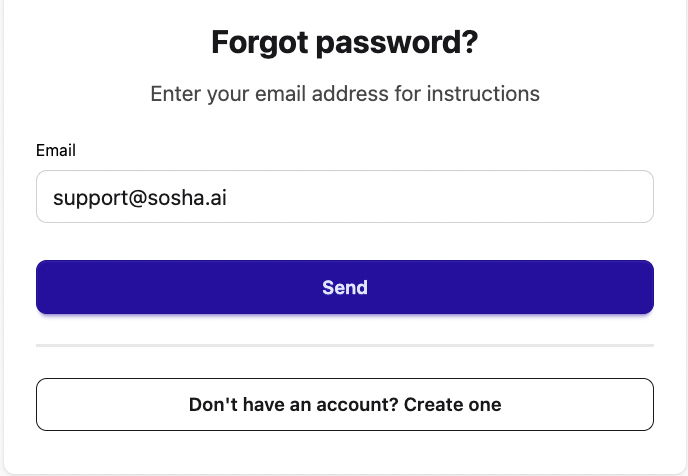
Enter your account’s email address and click “Send”. We will send a password reset link to the account email within a few seconds.
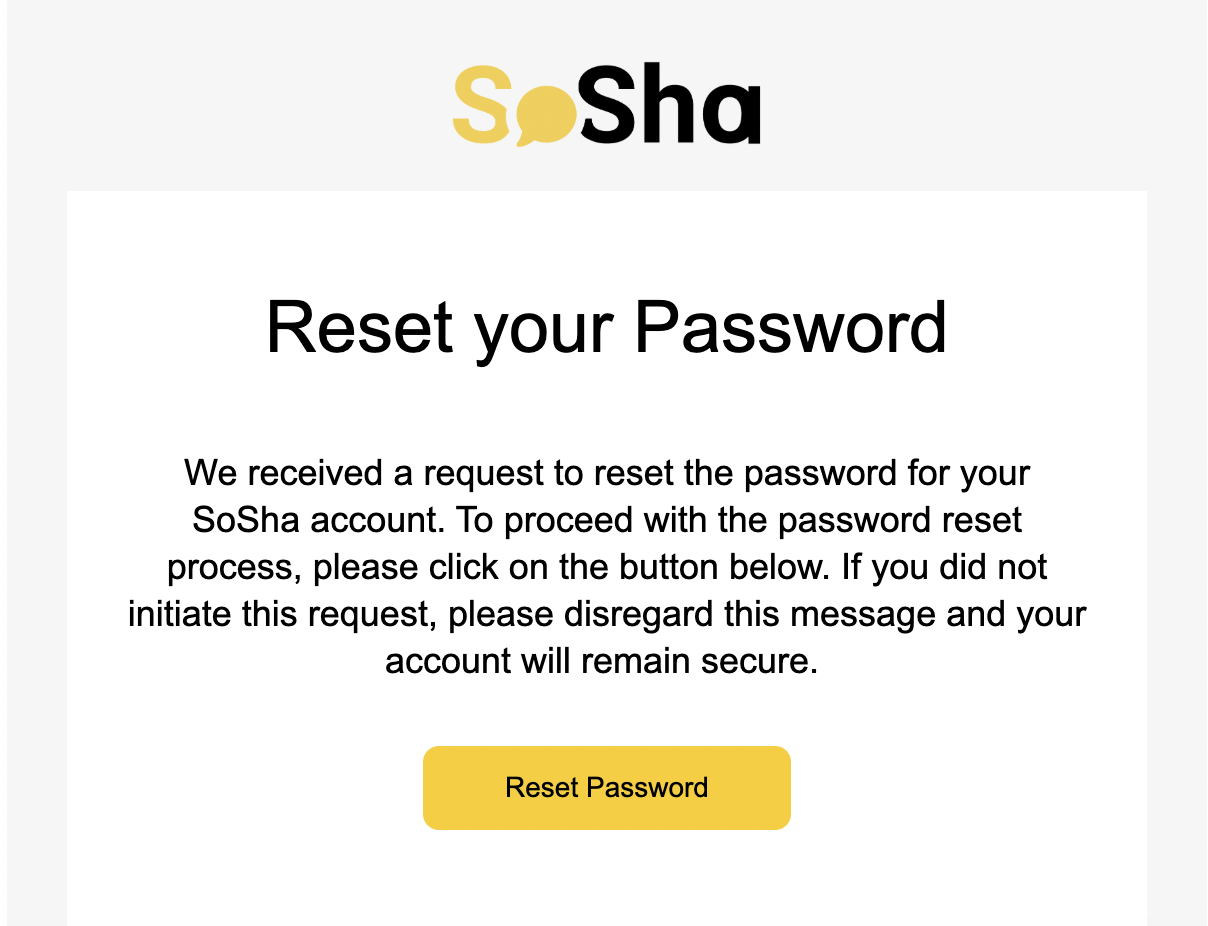
Click “Reset Password” in the email to enter and save a new password for your account.
If you are logged into your SoSha account, your password can be reset at any time via the account menu.
To change your password after logging in:
Click the icon in the top right corner, and select "Settings" from the dropdown menu.
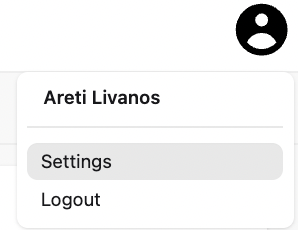
Next, click the "Account Settings" tab on the left-hand side menu.

Select the ‘Change Password’ button.
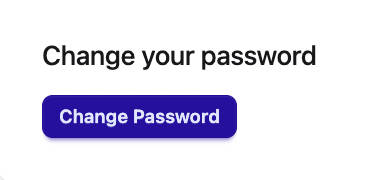
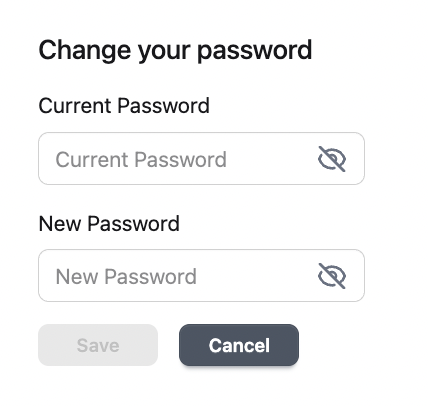
Enter your current password, followed by your new password, and then hit “Save” to finalize the changes.