

Reach out to support@sosha.ai with any additional questions or submit a ticket below.
Submit ticketHow to Use Cloud Storage for UGC Collection
You can connect a cloud storage bucket to your SoSha account to collect user-generated content (UGC) — photos or videos that sharers upload directly to your toolkits, such as selfies or reaction videos.
Note: Only owners of an organization can activate this enterprise feature available on Growth and Pro plans.
When visitors create a post with UGC, they’ll be asked whether they’d like to share their media with your organization. If they agree, the content will be automatically uploaded to your connected storage bucket.
This is different from Kiosk Mode, which lets people upload photos or videos directly without sharing them on social media.
How to set up the Cloud Storage for UGC:
Go to the dropdown menu on your Settings of your organization.

Click or scroll the section titled 'UGC Collection' and click 'Connect Cloud Storage.'

Select which provider you will use to upload the user-generated content and enter a name to identify the storage connection.
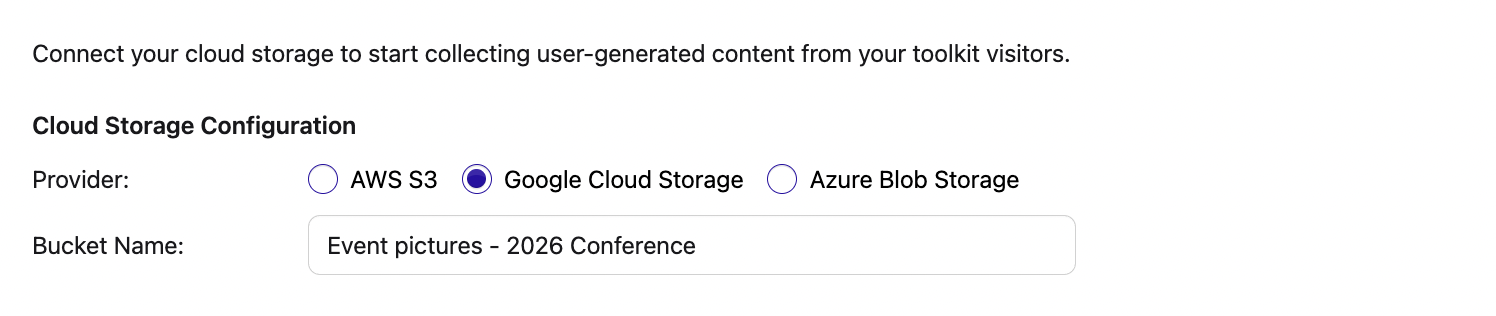
Enter your JSON Credentials. These are authentication credentials for your cloud storage provider (like Google Cloud). SoSha uses these credentials to upload UGC files securely to your bucket. Without valid credentials, SoSha won’t be able to store any media.
Click the ‘Test Credentials’ button and when confirmed, press save.

(Optional) Add a Terms of Service link so that, before uploading any media, toolkit visitors must agree to your terms. Explain how you plan to use any shared content and clarify consent and usage rights, since visitors are sharing content with your organization, not SoSha.
You can also enable consent options that require sharers to opt in before uploading their photos. These options let you add a short terms and conditions message, verify age, and collect email addresses to help you organize submitted content.
Enable Kiosk Mode
To enable Kiosk Mode, open a toolkit and go to Settings. In the Collect user-generated content section, copy the Kiosk Mode link and share it with your community.
When people use this link, they will only see posts with user-generated content and will be prompted to take a photo or record a video and upload it directly to your organization’s bucket instead of posting to a social media platform.