Reach out to support@sosha.ai with any additional questions or submit a ticket below.
Submit ticketNew to SoSha?
SoSha helps organizations drive true organic reach by tapping into the social clout of their communities.
Organizations use SoSha to build toolkits of ready-to-share content that their audiences, speakers, attendees, or supporters can post directly to their own social channels.
This section will explain everything you need to know to hit the ground running - learn how SoSha works, how to set up your account, create your first toolkit, and start sharing posts.

Step 1: Set up your Organization
After logging into SoSha, you’ll either:
- Join an organization if you’ve received an invitation, or
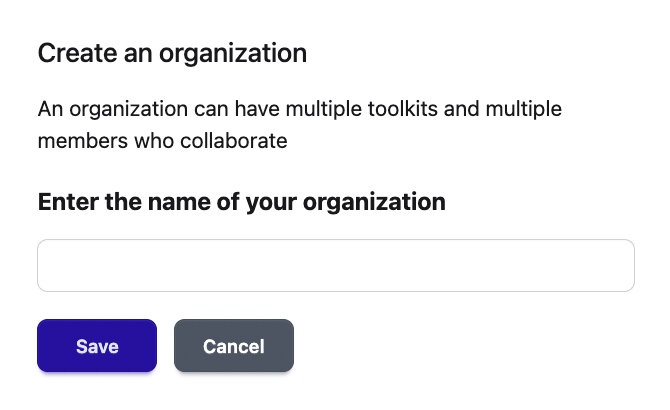
- Create a new organization if you haven’t. Organizations are workspaces where your team can build toolkits and review analytics.
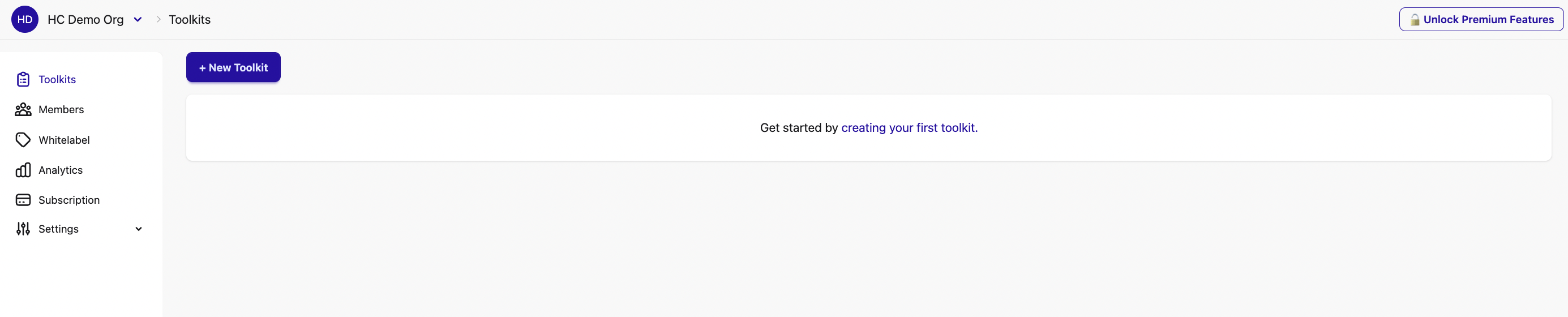
From here, you can:
- Invite team members and assign roles
- Manage toolkits, analytics, and subscriptions
- Customize settings
Once you're a part of an organization, a step-by-step guide at the bottom of your screen will help you get started.
Click the arrows to jump to the pages where you can complete each task.

Step 2: Create your First Toolkit
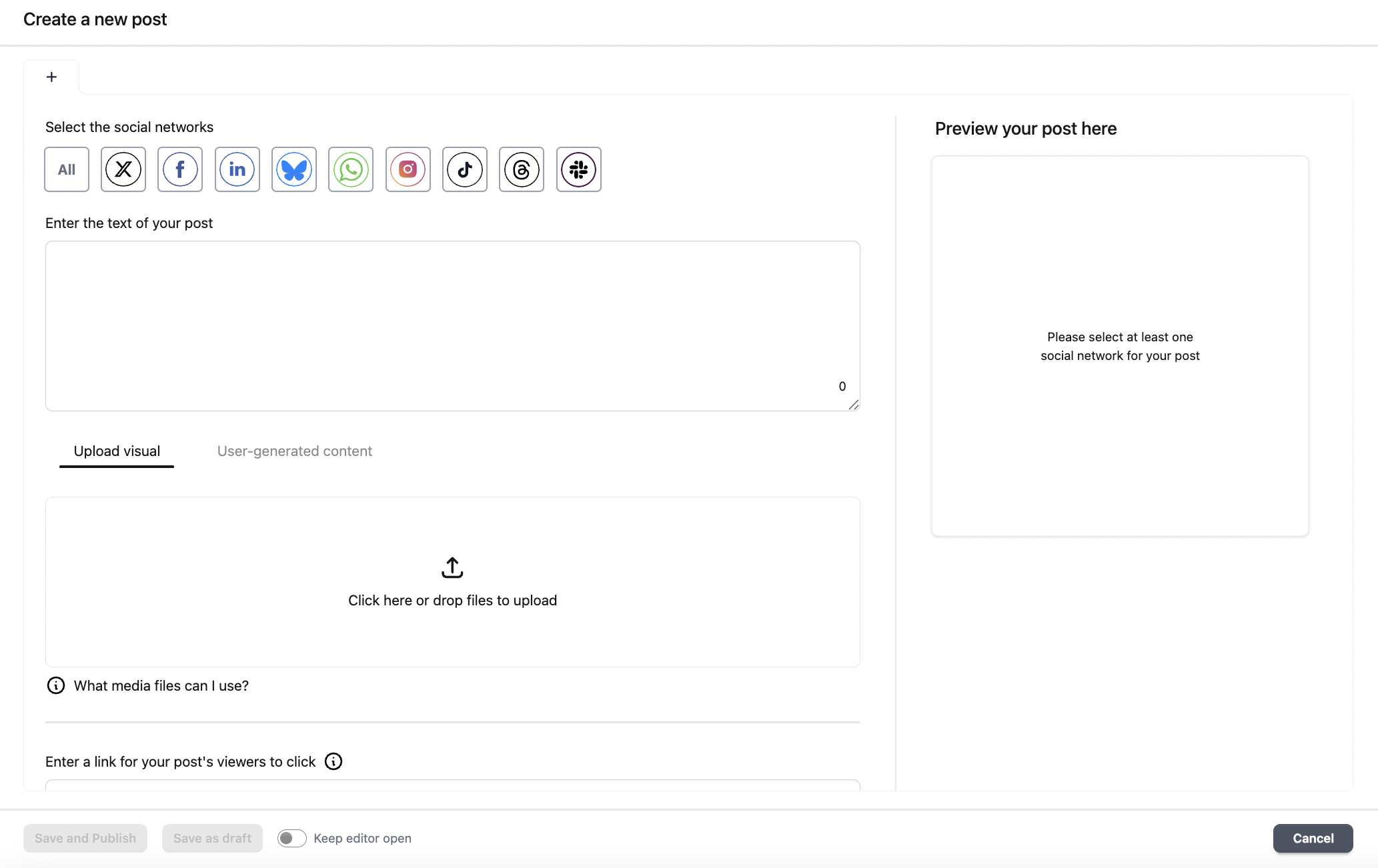
Click “+ New Toolkit” at the top of your dashboard to build your first toolkit. Give it a name and you’ll be taken to the post creator interface, where you can build ready-made content for your community to share.

From here, you can:
- Write posts manually, or
- Use SoSha’s AI writing assistant to generate tailored copy based on previously written content like a press release or article.
Step 3: Optimize Your Posts
Each social platform has its own best practices. SoSha helps you create optimized versions for each one. Start with the platform you’re most comfortable writing for, then you can use AI to generate variations for the others.
For each platform, we recommend different image resolutions:
- Posts with links (except Instagram/TikTok/WhatsApp): 1200x630 px
- Posts without links (most platforms): 1080x1350 px (1080x1080 also works)
- Instagram grid: 1080x1350 px
- Instagram stories & TikTok: 1080x1920 px
Tips:
- If you’re sharing a link, place it in the link field, not the post text (that’s how clicks are tracked).
- Faces in visuals tend to drive more engagement.
- Don’t hide your call to action—ask people directly to click, sign, or donate.
- Use a voice they’ll feel comfortable sharing. Remember: these posts will be shared by your supporters, not your brand channels.
Step 4: Customize Your Brand
Customize how you present content to your audience. See our Toolkit Appearance Guide for more details:
Here are some ways you can personalize your toolkits to match your branding.
- Banner: This header appears at the top of your toolkit. It's optional but we strongly recommend adding one. A good banner should:
- Show people they're in the right place (logo, colors, branding)
- Remind them why they're here (set the scene with a brief message)
- Ask them to share (people respond to clear calls-to-action)
- Link Preview: Customize how your toolkit appears when shared as a link. Add a title, description, and preview image. You can also change the favicon and title in the browser's tab when someone lands on your toolkit.
- Mobile Sharing Customization: We offer an 'All apps' network which only appears on mobile devices. This catch-all option lets users share to any platform not listed in our social network selector. Customize the icon, name, and brand color of this network.
Step 5: Share and Track
Your toolkit will remain unpublished by default, giving you time to prepare your content. When you're ready, publish it to make it live for your audience. Once live, your community can start sharing from their mobile devices or their computer.
At SoSha, you can also embed your toolkits in different ways:
- Website Embedding: Embed your toolkit into your existing website, blog, campaign, or most other websites you use to communicate with your audience. You'll need to copy-paste some code into your website.
- Email Embedding: Embed a post into the mass emails you send to your audience. You'll need to copy-paste some code into your email builder. Tip: Less is more—select your 3 strongest platforms for best results. Here's our guide on embedding posts into emails.
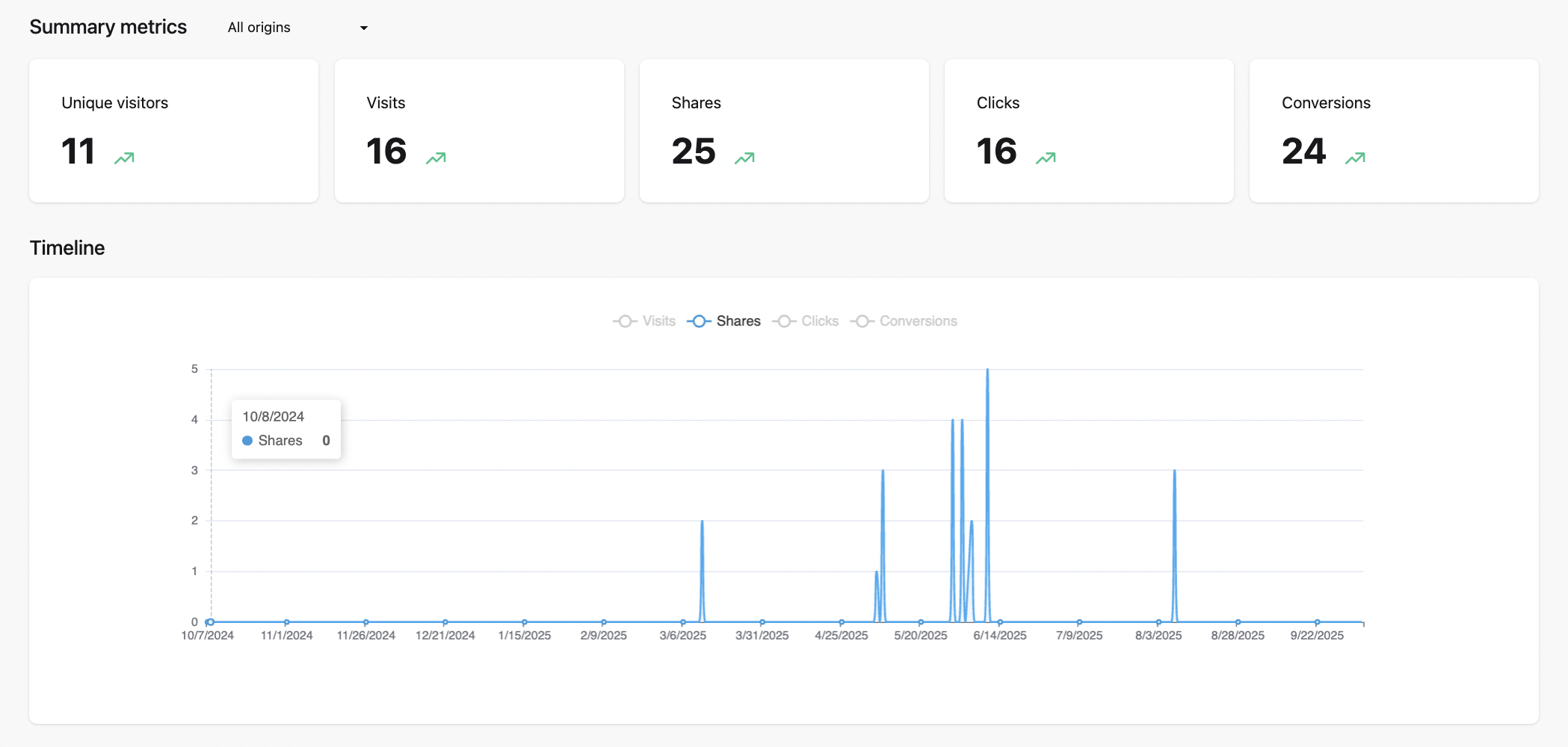
You’ll be able to track engagement and performance in Analytics for each toolkit.